Friday, July 13, 2018

Use Of O365 & SP Online To Build A Perfect Intranet

If you are considering Office 365 as an intranet solution, below are a few applications that you and your team will want to be familiar with:

SharePoint Online


SharePoint Online is an all-important tool for an Office365 intranet, helping organizations share and collaborate with internal employees and external partners, contractors, and customers on any device. With SharePoint Online, you can access internal sites, documents, and other information from anywhere in the world – at the office, at home, or from a mobile device.

Team Sites


SharePoint Team Sites allow you to quickly create code-free sites for different user groups within SharePoint and Office 365 that look great on any device. Team Sites are constructed to be fully customized to your needs. Documents, videos, images, site activities, social media feeds, and more can be added in a couple of clicks. It also gives the ability to add ‘highlighted content’ (which will automatically and dynamically populate in that area of the page). The home page of a SharePoint Online gives you instant visibility into site activity and important documents, while providing a great way to communicate, connect with others, and share ideas.
For more details on SharePoint and Office 365 check out the Top 5 Integration Features of Office 365 and SharePoint Online here.

Microsoft Teams


Similar to Slack, Microsoft Teams has a focus on a chat-based workspace, with social feeds and email chains taking center stage. Its overall goal is to bring together people, conversations, and content, helping to create a more open digital environment that makes work visible, integrated, and accessible. You can easily embed and collaborate over Word, Excel, PowerPoint, SharePoint, OneNote, and other Office files. You also get built-in video/voice calling features, so your colleagues can easily arrange meetings remotely. There is also a screen sharing option that makes collaboration easy.


Thursday, June 28, 2018

As per Microsoft SharePoint communication sites begin rollout to Office 365 customers

During last month’s SharePoint Virtual Summit, we unveiled SharePoint communication sites—beautiful, dynamic sites that let you reach a broad internal audience, and that look great on the web, in the SharePoint mobile app, on PC and on Mac. Today, we’re excited to announce that communication sites are now rolling out to Office 365 First Release customers, followed by full worldwide roll-out to Office 365 customers in the coming months.
Image scrolls through a SharePoint communication site in desktop view.

Create a beautiful communication site in seconds

Communication sites are perfect for internal cross-company campaigns, weekly and monthly reports or status updates, product launches, events and more. To help you jumpstart getting your message out fast, communication sites provide configurable templates for the sites and pages within. When you click Create site from the SharePoint home in Office 365, you have a choice of three initial site designs:
  • Topic—Select the Topic design when you have a lot of information to share, such as news, events and other content.
  • Showcase—Use the Showcase design to feature a product, team or event using photos or images.
  • Blank—Start with a blank site and make your design come to life quickly and easily.
Images showing how each of the different three site design options look on a desktop and mobile device.
Communication site designs (from left to right): Topic, Showcase and Blank.
And it is easy to tell your story. Once your new site is created, simply drag-and-drop to reorganize web parts on the page to bring your use cases and scenarios to life. News and pages allow for multi-column layouts to represent your message in a meaningful, intuitive fashion.
Learn how to create a communication site in Office 365, add a page and work with column layouts.

Share your plans and updates in engaging, interactive ways

Communication sites allow people to create and share recurring updates beyond email. When you create a page on a communication site, you can embed documents and video, and dynamically pull in real-time data from across Office 365, including documents from SharePoint, Power BI reports, Microsoft Stream videos and Yammer discussions. The resulting page is a rich and dynamic communication. And the page persists on the site, so people can refer to it easily, even as the membership of your team changes, so new members can more easily get up to speed.
Image showing how a communication site displays all the data pulled in from Office 365, including news, events, key documents, resources and contacts.
The new capabilities for the rich section layouts and new web parts can be utilized on SharePoint team sites as well.

Consume, create and connect from your mobile device via the SharePoint apps

It’s easy to access, engage with and create content for communication sites from any device. The full site, pages, news, navigation, search and more are natively viewable, functional and engaging. Read a page, create a news article, engage in a Yammer conversation—all in the context of the site—from within the SharePoint mobile app experience.
Image runs through a SharePoint communication site in mobile.
You can download the SharePoint mobiles apps for iOS and Android today, and the new features will be available in the coming weeks. Learn more about the SharePoint mobile app for iOS, SharePoint mobile app for Android and SharePoint app for Windows 10 Mobile.

Communication sites help further refine and enhance your message

Beyond what we shared during the SharePoint Virtual Summit, communication sites have additional capabilities to further refine and enhance your message.

Make your home page and sub-pages look great

  • Full-width layouts—The Hero and Image web parts can be placed in a section layout that spans the page from left to right, giving you ways to emphasize your most essential information.
  • Enhanced title region with custom header image—Visually represent your home page, news and subpages with a compelling header graphic and title. You control what portion of the image is the most important, so it looks great, and as intended, across web and mobile experiences.

Continue the discussion in context to ensure reach, retention and engagement

  • Comments on pages—Each news article and page can have its own set of comments. It is possible to use the Yammer web part for broad discussion scenarios as well as targeted responses to engage your viewers on the sole message and content on the page—all keeping within the context of the page.
  • Share news via email—When you share news via email from a communication site, it’s not just a blue link; it’s a visual, informative preview that adds context to both the email and the news article itself. Within the email, the recipient(s) will see a thumbnail, title, description and an optional message from the sender.

Dynamically pull in and display data, documents and information via web part improvements

  • Power BI and Microsoft Stream—Bring in interactive reports using the Power BI web part, and embed single videos or full channels from Microsoft Stream—the single destination within Office 365 for your cross-company video management. Both Power BI and Microsoft Stream are now generally available.
  • GIF support—When you add an Image web part into a news article or page, you can now include animated GIFs in your layout.
  • New “See all” pages—When there is more content than can be shown within the first view the Highlighted content and Site activity web parts, you can click See all to go to a full-page experience to see all the content and activity.
  • Updated News web part—Showcase your news using multiple layouts to highlight what’s important with greater flexibility. You can use the default Top story layout, view news as a list or side-by-side.

Wednesday, May 9, 2018

10 Reasons To Use SharePoint As A Document Management System

SharePoint was created to manage your documents at your company.
If you have a large organization (like a construction company or commercial real estate firm) and you’re managing your documents without a system like SharePoint Online (in Office 365), your documents are probably unorganized, in a variety of systems, and difficult to find.
Storage systems like Dropbox and Google Drive do work very well for some. However, they are far from ideal when your company needs to share files and collaborate efficiently across different departments, or externally with contractors or vendors.
Not having a document management system or the collaboration tools to keep everything organized and secure will end up costing you in the long run. What you need is a document management system that will place your files in a hierarchy. Microsoft Office 365 has a built-in document management system… it’s called SharePoint Online.
Finnerty says that if you get the right SharePoint consultant who knows document management, the information you need is organized and at your fingertips: “This dramatically increases productivity. You can make decisions faster with the right information easily accessible.”

First 5 Reasons To Use SharePoint Document Management (Per Microsoft)

Microsoft says you can do the following with SharePoint:
  1. Store, organize, and locate documents.
  2. Ensure the consistency of documents.
  3. Manage metadata for documents.
  4. Help protect documents from unauthorized access or use.
  5. Ensure consistent business processes (workflows) for how documents are handled.

We See 5 More Top Benefits Of SharePoint Document Management:

  1. Security: If you are managing by email, then chances are good that you’re blasting your company with sensitive information. Management by email is not only cumbersome and ineffective, it’s also not secure. From a security perspective, it’s a lot safer to leave important documents behind a firewall where employees can get it when they need it, instead of sending it through email.
  2. Single Sign-On: SharePoint is also great at giving you access to all the apps you need with one sign-on. Instead of continuously signing into different systems and software, SharePoint is your single sign-on.
  3. Version History: Again… if you’re managing by email, there is a better way! Another thing that SharePoint can really help with is version history. Sometimes in corporate environments, a document will be emailed back and forth and it gets difficult to determine which is the most up-to-date version. With SharePoint, you can check out documents, have employees edit them, and then check them back into SharePoint.
  4. Automation: According to Microsoft, a SharePoint workflow is like an automated flowchart that takes a lot of the labor, guesswork, and randomness out of standard work processes. SharePoint can ensure employees have the appropriate approval to access and edit the document, removing the guesswork from employees.
  5. Easy Team Collaboration: It’s easy to work on projects when the documents your team needs are in one place. Microsoft even says that SharePoint lets you “Collaborate effortlessly and securely with team members inside and outside your organization, across PCs, Macs, and mobile devices.”
However, SharePoint can be tricky to implement.
We have the experience to help. See how our expert SharePoint consultants and developers can make it a breeze.

Managing Data With SharePoint Will Transform The Way You Do Business

“As I talk with organizations around the world, it is clear they are not coping with the explosion of digital data – and that manifests itself as employees struggle to find and act on the information they need,” Microsft CEO Satya Nadella recently said.

ASK YOURSELF THESE 3 QUESTIONS…

  1. Are you managing your entire company from a spreadsheet?
  2. How do you plan to grow your business with those document management tools constantly changing?
  3. Does your SharePoint work the way you want it to?
If you properly implement SharePoint, it will transform your company’s productivity:
  • Employees will be more efficient
  • You’ll have better access to your company’s data
  • You’ll be able to better report on key metrics.

Thursday, April 5, 2018

Improve SharePoint Performance

The performance of SharePoint is directly linked to SQL Server

SharePoint Performance linked to SQL Server
Of course, SharePoint settings and configurations do impact your SharePoint’s performance speeds. However, SQL Server is the real engine behind SharePoint. Everything is stored in your databases, the faster information can be written, stored and accessed from it the faster SharePoint will be.

The Disks and the NTFS Allocation size

Before you even install SQL Server, you will need to make sure you have the right disks. I won’t pretend to be an expert on hardware and I will let you find the best for your scenario. My personal laptop is running on SSDs. However, there is something we can do to help the speed: change the NTFS Allocation size of your drives by formatting the disks. SQL reads and writes 64K at a time, but your disk allows only 4K by default. This change alone may show you up to 30% improvement in speed.
Free Bonus: Download our guide to learn How to Increase Your SharePoint Environment's Performance.

Modifying the Model Database to increase SharePoint performance

Modify Model Database to increase SharePoint performance
Every time a new Content Database is created by SharePoint to store your Web Application in along with anything else you do, SQL uses the information in the Model Database to create it. Unfortunately, it is not even close to being optimized for SharePoint.
Initial Size:
The initial size of the database when it is created should take into consideration what it is being used for. With the very small default size in the single digit MB, it doesn’t make much sense in a SharePoint scenario. We know SharePoint is going to be used to store a lot more; therefore we can automatically give a larger amount of space to the database when it is created.  This will help performance, as SQL won’t have to constantly ask for more space to store data.
Auto Growth:
Eventually, the database will reach the initial size with data and will need to grow. This is where we can tell it by how much it should be growing once the size has been met. Make sure to grow the size of your SharePoint databases by chunks that make sense in your environment.
You should do the same changes to your TempDB SQL Database as SharePoint also uses it indirectly through the database server to store objects.

Instant File Initialization can help speed up SharePoint but be careful

Instant File Initialization can help SharePoint speed
Talking about increasing those SharePoint Database file sizes, how does it actual do it? Well to make sure it can be written to as it creates or grows the database, SQL will write zeroes to validate it can write to it and then claim it. This can be a very long process depending on the required task SharePoint asked of SQL Server. Luckily, there is something that allows us to skip this process called Instant File Initialization.
The amount of time saved for these operations is incredible! However, I can’t say I would recommend this in a production environment, but amazing for dev or demo machines.
**Note: It seems the use of it in production is still debatable, I've had some good points made on Twitter and I invite you to research more on the implications it has. It may be worth it for production as well. One thing is for sure, the performance gains are incredible.

Logs and Maintenance of your SharePoint

Without a log file to tell the Database where it is at inside that big file, it would be meaningless data. That’s why it is extremely important to have the right recovery model for your needs.
There are two models, one with less information that will take less space and require less maintenance and the other one offering the opposite. Regardless of the model that works for you, make sure it is properly maintained and the logs truncated to make sure you don’t end up with something larger than the database itself.

The famous SharePoint Continuous Crawl for Search

SharePoint Continuous Crawl for Search
Though I have recently covered the Crawled Properties vs Managed Properties, it is not enough to understand the different SharePoint crawls. A crawl is required for Search in SharePoint to pick up these properties and it to work. Though Continuous Crawl is new and awesome, it does not mean it should be activated everywhere you go.
For testing and demo purposes, I have my Search running on no schedules and run a Full or Incremental when I need it. Obviously, in a production environment you will need to properly schedule these crawls for your different Content Sources. And if you are still using the default Local SharePoint Content Source, then you are doing it wrong.

A case of the SharePoint Service Applications

Service Applications provide new features for your SharePoint platform like Search. If they do not exist or are not connected to your Web Applications then you will not be able to benefit from them. However, it doesn’t mean you need all of the Service Applications.
I only have the ones I need created and in use, unless I'm thinking of using Access and Visio services for example I do not need them to exist in my farm. This goes for the services running as well, it is not unlikely to see my SharePoint farm with many services set to “stopped”.

SharePoint isn’t just database, it’s also a lot of IIS

There is a number of things you can do to improve both management and speed of your SharePoint at the server and IIS level. Open up your Sites and Application Pools and see if you can’t add more running processes for them if you have the CPU. You can also enable BlobCache by going into the web.config file of your Web Applications and turning it on by setting it to True.
Explore these settings to set what makes sense for you and your current needs. For example, I sometimes set the recycling of application pools at a specific time in the early morning to make sure I can schedule a warm script soon after that.

The concerns of migrating SharePoint with Database Attach Upgrade

Migrate SharePoint with Database Attach Upgrade
I believe Microsoft did an amazing job for this migration method. Compared to our previous migrations from 2007 to 2010, we can now migrate to SharePoint 2013 and leave our databases in 2010 mode. With deferred Site Collection upgrade scenario we can even do this by Site Collection, it’s great.
However, using the Database Attach upgrade scenario will not let us benefit from the new SharePoint 2013 feature “Shredded Storage” on existing content. Shredded Storage will help us save space only on future content created with SharePoint, but not the existing content in it.
Obviously, tools like Sharegate will allow you to benefit fully from Shredded Storage during your SharePoint migration. I don’t want to do a sales pitch, use whatever you want to migrate to SharePoint 2013, but be aware of the impacts it will have on your performance.
I did not find all of this information by myself; this comes from years of working with this beast of a platform and the generous help and advice for experts in the field. Edwin Sarmiento.

Wednesday, March 14, 2018

What Power BI does?

For example, you can pull in data from Excel spreadsheets, on-premise data sources, and SQL databases. You can also automatically grab data from your favorite cloud services like Microsoft Dynamics, Salesforce, Google Analytics, Zendesk, Facebook, and more. Microsoft is continually rolling out direct integrations with other popular cloud services to make it even easier to get all your data straight into Power BI.

Once you have the data you need, it should then provide you with the information required to make smarter and faster business decisions. That’s where Power BI Q&A comes in.
Simply type in a question about your data (as you would with Google) and it immediately serves up a response in the form of an interactive chart or graph
For example, want to know this year’s sales compared to last years sales by month? No problem!
Power BI Ask a Question Feature
Power BI Visuals – Ask a Question About Your Data

Power BI Tools Keep You Focused On The Important Metrics.

Gathering insights from your data is a breeze with Power BI’s simple drag-and-drop user experience. You can quickly find the insights you are looking for and visualize them in beautiful, interactive reports.
Once you have a report, save it to your personal dashboard. Here, you can quickly see the charts and graphs with the data and metrics that are most important to you and your business.
As I previously mentioned, you can also embed reports in SharePoint Online so that everyone (with access and the correct permissions) can view the report.
Power BI - Metrics Dashboard in SharePoint
Power BI Visuals – Metrics Dashboard Example in SharePoint

Power BI Gives You The Insight To Stay On Top Of Opportunities And Risks.

Capitalizing on opportunities and minimizing risks are important to sustain business growth (of course). Power BI offers predictive forecasting to help you visualize future business performance (such as potential and predicted sales and risks) while providing more efficient data-driven decision-making opportunities.
Power BI Visuals - Stay on Top of Opportunities and Risks
Power BI Visuals – Dashboard Example

With Power BI consulting and development services from HingePoint, you can take the blindfold off, and see your data organized visually on one screen (instead of scattered across spreadsheets, software, and organizations). Interested in seeing how Microsoft Power BI can help your business? 

Wednesday, February 28, 2018

SharePoint Out Of Box Tips And Tricks From The SharePoint Experts

SharePoint Settings

SharePoint Settings. SharePoint Consultants, SharePoint Developers, HingePointThis symbol is important.
When you see the settings icon in the upper right corner of your screen, it gives you access to all of the site contents and all the specific site settings for THAT specific page.
“I always thought it brings you to the same set of contents and settings,” HingePoint Project Manager Brendan Desjardins said. “But even though the top nav doesn’t appear to change, clicking on site settings or contents directs you to the appropriate lists based on the page you navigated from.”

Out Of The Box Web Parts

SharePoint Consultants, SharePoint tips, SharePoint tricks, HingePoint
Site features is a new component for 2013 and 2016 Sharepoint. Navigate to Site Settings under Site Actions: Manage Site Features. You will be presented with a list of the out-of-the-box web parts that you can activate:
  • The Business Intelligence Center is new for 2013 and 2016 which allows you to connect BI Dashboards and BI Data to the Sharepoint
    User can adjust settings for different functionalities at the Site Level and the Site Collection Level
  • Library Settings holds all of your metadata and provides you with the ability to implement versioning history, approvals, and document templates
  • Best practice: do not create more than 8-12 subsites below the top level.

Other Cool Facts

  • In Sharepoint 2016, you now have the ability to upload files with special characters in the title.
  • Users can go to Recycle Bin to restore any deleted contents.
  • Users can go to Site Settings/ Look and Feel to change how SharePoint looks out of the box. Change formatting, background pictures, and color schemes. It also has many preloaded templates available to make Sharepoint more exciting. You can also upload a picture to the Sharepoint title in the top navigation.

Learn How We Can Help You With SharePoint

Learn how we can make your SharePoint better or contact us for a quick, free consultation.

Wednesday, January 17, 2018

SharePoint and Office 365 backup alternatives

Malicious or accidental deletion of content and the digital Intellectual property has always been a major concern for the organizations. On-premises this has always been mitigated with regular backups, meticulously performed and managed by an IT Department. In SharePoint Online and Office 365, the situation is a bit different and somewhat challenging. The content is no longer stored exclusively in shared drives and folders or Exchange mailboxes. Instead, it is spread among hundreds of SharePoint sites and document libraries, OneDrive for Business and other Office 365 properties like Planner, Yammer, Office 365 Groups, and Teams. Moreover, your content resides in the Microsoft Data Center, so you do not have access to any servers/hardware.
There is a handful of companies out there that do offer some Office 365 backup and restore software. Since I am not a backup expert, with this post, I would like to provide alternatives to SharePoint Online backup that you might consider for your organization instead of traditional “tape” backups.

ADMINISTRATOR’S RECYCLE BIN

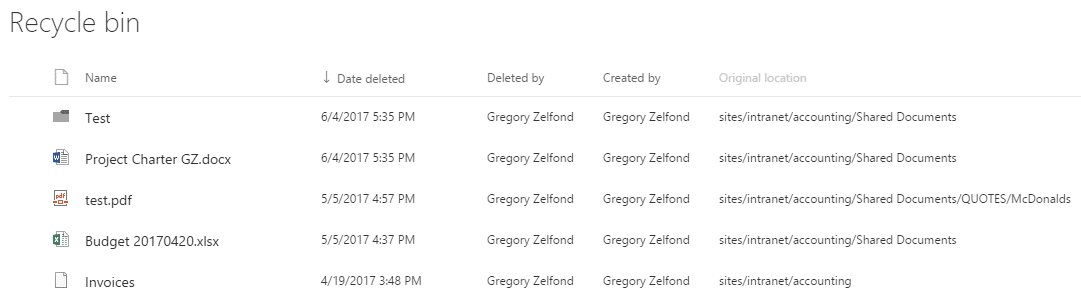
You do have a simple and robust backup solution available in SharePoint Online for 90 days – it is called the Recycle Bin. Everything users delete, ends up in there (documents, tasks, calendar events, folders, lists, libraries and even complete sites). Moreover, even when users empty their recycle bins, the stuff is transferred to the secondary stage recycle bin, accessible only by the SharePoint Administrator. The grace period for all content is 90 days – this is how much you have to restore it back to the original location.
While the Recycle bin can not be compared to traditional backup solutions, this is your first line of defense and relatively simple to use. It can also be monitored regularly.
SharePoint and Office 365 backup alternatives

SECURITY & PERMISSIONS

To minimize the potential loss of data, you should map out the proper security and permissions and follow best practices and guidelines. It is always wise to assign as minimum permissions as possible for each user on a given site. If all your users need it the ability to view data, do not give them Contribute privileges. If all they need is the ability to edit documents, do not give them Full Control (trust me, I have seen a share of those!).
External sharing is another aspect that needs to be taken seriously. From proper information architecture to external user setup – make sure you do not end of with the situation where non-employees will get their hands on the stuff they don’t need to see or edit.
SharePoint and Office 365 backup alternatives

PREVENT DELETIONS

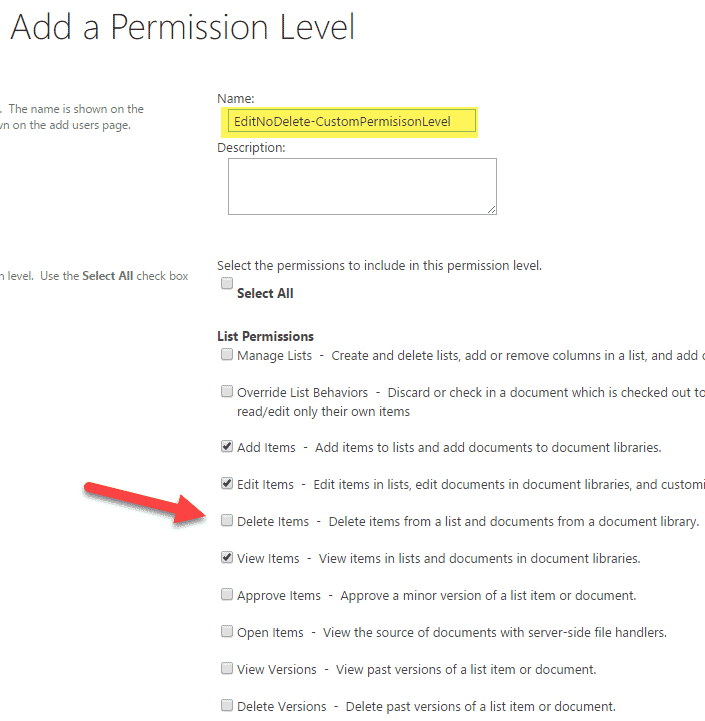
If you are worried about users deleting certain content from sites, you can disable deletions via Permissions. Out of the box, you do not have a permission level that would allow users to add and edit, but not delete, but you can always create a custom one.
SharePoint and Office 365 backup alternatives

GOVERNANCE

Having certain policies, rules and regulations in place will sure minimize inadvertent issues with your content. Governance plan, committee and governance document by itself are a great step to outline and solidify the expected guidelines and behavior related to SharePoint and Office 365 application. Check out this post for more information and different components of the governance.

TRAINING

Say what you want about training, but I bet that most of accidental deletions and loss of data occur due to poor understanding of the technology and features by the employees. Proper education and training are not only a great investment by the organizations but can also help prevent more serious issues like loss of intellectual property. Read more about training here.

RETENTION POLICIES/RECORDS MANAGEMENT

Deletions and loss of content can also be mitigated via proper implementation of Retention Policies and Records Management. I describe how retention policies work here, but essentially what records management in a nutshell means is that you can designate certain content as records in SharePoint, which in turn will prevent deletions of such content (when documents are declared as records manually or via policies).

ALERTS

Alerts can be a real simple way to be notified about deletions and act accordingly. They might not be practical to set up on all the document libraries and lists, but could be great for those super important document management systems.

VERSIONING

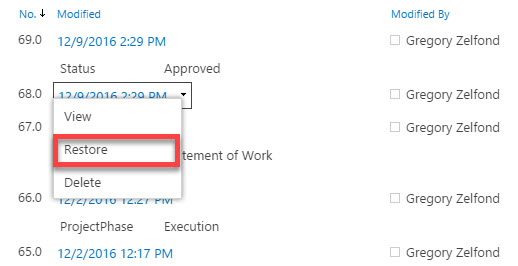
It is not always the case that you need to restore a deleted file, but rather restore a previous version of it, in case inadvertent changes were made by your colleagues. In such cases, versioning is your best friend. You can easily restore a previous version of the file or an item. Moreover, this could be done by any of the end users themselves, no need to email an IT administrator. Versioning is automatically enabled for all document libraries in SharePoint Online and needs to be manually set for other lists.

EMPLOYEE AUDITS

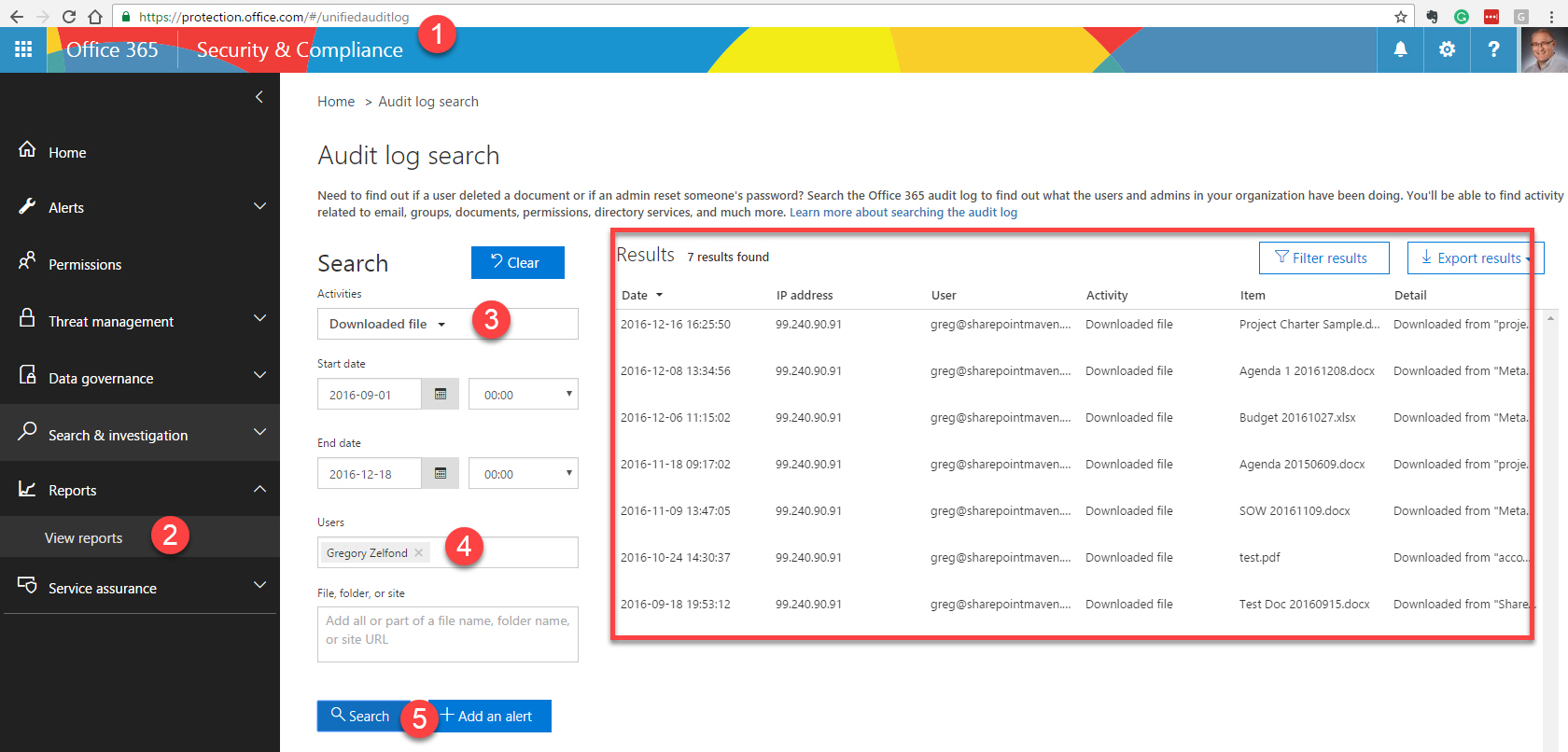
Lastly, if you need to keep an eye on certain files or employees, you have all the power with pretty robust Office 365 audit reporting (part of Office 365 Security & Compliance Center). You can easily see and monitor employee activities, file access, and deletions. And, you can also set up alerts as well, to be notified of certain activities. I describe the Audit Log functionality in greater detail here.
SharePoint and Office 365 backup alternatives

Friday, December 29, 2017

Optimizing memory usage

In this post I’ll discuss some memory optimization work I’ve done recently on the LLBLGen Pro runtime framework, v5.3.2. This is a popular (commercial) .NET ORM. LLBLGen Pro is on the market since 2003 and has seen a lot of refactoring work internally over the years, among them performance optimizations and memory usage optimizations. With new features come new challenges to make the overall framework perform the same or even faster and still perform the new features as well, so optimizing the core engine is a recurring effort.
The optimizations discussed here form just a small subset of the massive amount of things you can do to optimize memory usage, but it could give some insights in how to get started and what to look for in your own code. As with all optimization work, it depends on the situation at hand and why that particular piece of code is less optimal so you can fix it properly.
Before we can do any optimization however, we first have to define a couple of things so we don’t do any work  unnecessary or even harm the code we want to make more optimal. I won’t go into fine details about the differences between the various heaps, as that’s besides the scope of the article.
A word of warning though: pre-mature optimization is bad. The things discussed here are solutions to problems I recognized. They weren’t applied because ‘they are faster, regardless’; they’re not rules you should live by. Sure, if you have the choice between two equal solutions, just pick the one which is more efficient. Performance optimization isn’t free: there’s always another thing you can optimize, and all it takes is a compromise elsewhere. Is that price worth paying? Up front you don’t know that, hence optimizing right from the start isn’t going to be beneficial in many cases: write clean, simple code that’s easy to maintain and understand. If there’s a slightly faster variant thinkable that’s way more complex and harder to understand, chances are it’s not worth it, and you only know after the fact, never before the fact: the code might be called just once, so optimizing it away is useless.

Why optimize memory usage and when?

.NET is a garbage-collector (GC) based platform and that brings great joys because you don’t have to care about memory allocation and management: the GC cleans up after you’ve trashed the room and in theory you never have to worry about any consequences. While trashing rooms as a wanna-be rock star might feel exhilarating, there’s no free lunch: not in hotels, nor inside your computer beneath the .NET CLR and its digital vacuum cleaner; something has to pick up the tab, and in the context of this article, it’s the GC.
Allocating memory has a cost, albeit in general a small one: it takes a bit of time to allocate some memory, initialize it and make it look like that fancy StringBuilder you just new-ed up. When you add some strings to that StringBuilder and its internal buffer is too small, it has to allocate a new block of memory, copy over the original contents and free the old block. Those actions take time. Not ‘copy this large file to a usb-stick’-time, but doing it a lot of times will be noticeable.
Besides the work the GC has to do for cleaning up the old buffer, the whole allocating/copying/freeing dance has another side effect: memory fragmentation. The GC/CLR compacts memory when it gets the chance. The main reason is that if your program needs to have a large block of continuous memory, chances are it’s available, and not fragmented over a million already deallocated buffers. In the latter case you’d get an out-of-memory exception as the block you’re requesting isn’t there.
So in short: all that memory allocating work can be a serious burden for the overall performance of your software. The less memory your application allocates, the better: what isn’t allocated doesn’t need to be cleaned up / copied / packed and taken care of. The problem of course is: with a system where memory management is taken care of behind your back, you’re not focused on it when writing code and reading a piece of code won’t immediately reveal where things are less optimal.

Profile, Analyze, Fix

You can’t say anything about whether software is slow or less optimal unless you’ve measured it first. This is done using a profiler. A profiler is a tool which measures performance, memory usage and the like of software and gives you fancy reports about what code was executed, how slow each statement was and what memory was used. There are several profilers for .NET, e.g. Jetbrains’ dotMemory and dotTrace, Red Gate’s Ants and e.g. the visual studio performance analyzer. Each has their strong points and weaknesses, and some offer some features others lack, it really depends on what you’re after. For this work I’ve used the visual studio performance analyzer, but in general what matters is: at least use a profiler. Make it a part of your every day tool-chain. If you’ve never used a profiler before, make it your main task tomorrow and run one over your code. Just to see what it digs up. Changes are you’ll be surprised what’s really going on inside your software.
With the profiler ready to be used, you have to define a set of tests which you want to measure. For this article I’ll be looking at some fetch benchmarks I’ve performed recently, which you can see in my previous post “.NET (Micro)ORM fetch benchmark results and the fine details”. It matters to have a context for your tests: if your measured code does things in N seconds and consumes M megabytes of memory, how can you say that’s an OK result or a very poor result? If you have comparable systems / pieces of code available, these can give context: in the light of my benchmarks: the hand-written, hand-optimized code is a good example how optimal things can be.
When examining the results a profiler gives you, you have to compare results with what’s realistically optimal. Take the hand-optimized benchmark: it’s very fast, but offers no other features as well. For instance there’s no way that code does authorization. If your code is slower or consumes more memory than that fastest variant, is that because you simply have more features and those take some performance, or is it because you made some sloppy mistakes and can do better? In short: the code you wrote, is it acceptable it’s that slow and eats that much memory? If comparable systems all do, maybe even more than your code, it might very well be your code is near optimal for what it does: you might optimize this code just for fun, but it’s likely you won’t find much to work with.
After you’ve found areas which are less optimal, you have to analyze what the real problem is: do you do unnecessary work, do you allocate a lot of objects you don’t need, or e.g. did you use code that was slammed together without any thought about performance and memory usage? Just three examples out of many which all need their own unique approach how to fix them. It might also be there’s no real fix for the code you have or it would require a complete rewrite of a lot of subsystems. That’s OK: at least you measured it, you analyzed it, and you made an effort to make it better but the costs are too high right now.

When to optimize?

People who just start using a profiler will often try to optimize everything, but that’s a mistake. Doing things with a computer takes time, it does use memory, it will not be ready in an instant. In general I use the rule that optimizing everything that consumes less than 10% of the overall time or less than 10% of the overall memory used by the test is likely a waste of time: even if you optimize it completely away, you gain at most 10%. Chances are if you are lucky, you’ll get from 10% to 7% or maybe even 5%, so you gained 5%. That’s not a big win. Instead first look at areas which take 40%-50% or even more and see what takes all that.

Visual Studio Memory Profiler

For the particular work we’ll be doing here, it’s key to have the right tooling. I’ve used the visual studio .NET memory allocation profiler for that. It offers a call chain with per method the bytes allocated. Most other profilers don’t offer this particular view, as they’re mainly focused on what memory is currently allocated at time T and what code allocated those objects, but it’s crucial for the measurement of which code is allocation more memory than it should. To learn more about this profiler, please see this excellent article from Stephen Taub: .NET Memory Allocation Profiling with Visual Studio 2012. Although it’s a few years old, it’s applicable to the current visual studio versions as well. For this work I’ve used the Call graph view and included the percentage columns (not visible by default) so you get a good overview what to ignore and what to focus on.
With that knowledge under our belt, let’s check out some optimizations I did and why.

Optimizing the Linq provider

If you look at the ‘Individual fetches, non-change tracking’ graph in the benchmark article, you’ll see that the Linq provider of LLBLGen Pro does consume more memory than all the others (the red line). Processing Linq expression trees is a complex affair, and doing things in the most optimal way is often not the first concern when writing a full Linq provider. Still, doing things inefficiently is of course something we should avoid.
Using the .NET memory allocation profiling feature of the performance analyzer revealed a couple of things. I’ve described them below.

Avoid params arrays

The Linq provider calls in every method at the start and end a method which traces the method start and method end. This method ends up in this simple tracer helper method:
   1: public static void WriteLineIf(bool condition, string messageInFormat, string category, params object[] argumentsForMessage)
   2: {
   3:     if(condition)
   4:     {
   5:         Trace.WriteLine(string.Format(messageInFormat, argumentsForMessage), category);
   6:     }
   7: }
The problem here is that with every call the argumentsForMessage array is allocated (and destroyed right after the call by the GC). Calling this method many times (and in a Linq provider, the visitors’ methods are called a lot) will make the CLR allocate a lot of object arrays which are then destroyed right after, causing potentially memory fragmentation. We can avoid these by simply making sure we hit an overload which doesn’t allocate the object arrays but accepts a fixed number of arguments. For this particular hot path this was ideal, as the method start / end trace messages were effectively simple strings and didn’t need string formatting.

Avoid StringBuilder.AppendFormat()

Inside the Linq provider it’s sometimes necessary to define a ‘key’ for a subtree or expression: You can then e.g. assign an alias on that subtree or expression. This is important as expression trees get transformed into different trees along the way, and when doing so you lose the object references you had as the expressions in an expression tree are immutable. So I calculate keys based on strings: I use visitors traversing the sub tree which along the way build a string from what they encounter, based on types and values. I use code like this:
   1: internal static void AppendExpressionFragment(StringBuilder toAppendTo, LinqExpression expression)
   2: {
   3:     if(expression == null)
   4:     {
   5:         return;
   6:     }
   7:     toAppendTo.AppendFormat("NT{0}|T{1}|", (int)expression.NodeType, expression.Type.GetHashCode());
   8: }
This uses an AppendFormat, but it’s actually unnecessary. More efficient is the following:
   1: internal static void AppendExpressionFragment(StringBuilder toAppendTo, LinqExpression expression)
   2: {
   3:     if(expression == null)
   4:     {
   5:         return;
   6:     }
   7:     toAppendTo.Append("NT");
   8:     toAppendTo.Append((int)expression.NodeType);
   9:     toAppendTo.Append("|T");
  10:     toAppendTo.Append(expression.Type.GetHashCode());
  11:     toAppendTo.Append("|");
  12: }
This is a simple change, but has a big benefit. All allocations needed for the format handling are avoided. 

Pre-size data-structures if you add data immediately afterwards

Consider the following visitor handler:
   1: protected virtual IEnumerable<ElementInit> HandleElementInitializerList(ReadOnlyCollection<ElementInit> listToHandle)
   2: {
   3:     TraceScopeStart("GenericExpressionHandler::ElementInitializersList");
   4:     List<ElementInit> newList = new List<ElementInit>();
   5:     bool changedElementInitializerSeen = false;
   6:     for(int i = 0; i < listToHandle.Count; i++)
   7:     {
   8:         ElementInit currentInitializer = HandleElementInitializer(listToHandle[i]);
   9:         newList.Add(currentInitializer);
  10:         changedElementInitializerSeen |= (currentInitializer != listToHandle[i]);
  11:     }
  12:     TraceScopeEnd("GenericExpressionHandler::ElementInitializersList");
  13:     return changedElementInitializerSeen ? (IEnumerable<ElementInit>)newList : listToHandle;
  14: }
A new List<T> is initialized with length 0. This means it doesn’t allocate any memory for its buffer. If you add a single element, it has to allocate a buffer. But it doesn’t allocate a large buffer initially. When adding the initial element, it will allocate an array of 4 items. If you add 5 elements, it thus has to throw away the array of 4 items, allocate one which can contain at least 5 (it uses a scale for that, see the List<T> source code) and copy over the 4 items already in the old array.
In the method above, we already know how many items we’ll add, namely listToHandle.Count. We can initialize the List<T> at line 4 with this number and make sure List<T> won’t re-allocate memory during the for loop. The careful reader can spot another potential optimization that’s not implemented here, as it would make the code more complex, do you see it (hint it relates to the next topic) ?

Initialize members lazily

In a Linq provider you track a lot of things along the way, e.g. which elements were aliased, which scopes are currently active and many more things. These are all stored in datastructures like dictionaries, lists and stacks. I use a class for that called MappingTracker, which tracks the collected data in its internal structures. Every visitor receives the general MappingTracker instance or if it’s a temporary visitor, a new instance. Being a good sport, I simply created new instances of these internal structures in the constructor, to avoid null checks and creations all over the place. However the price for this turned out to be higher than expected: every time the Linq provider creates an expression key (as shown above) it created a new tracker and a new set of these internal structures.
To fix this, simply initialize the structures lazily. I’ll give two examples. The first is the way which allocates memory for the datastructure regardless if it’s used or not. The second initializes it lazily.
Old:
   1: public class MappingTracker
   2: {
   3:     private readonly HashSet<SetAlias> _createdAliases;
   4:     //...
   5:     
   6:     public MappingTracker()
   7:     {
   8:         _createdAliases = new HashSet<SetAlias>();
   9:         //...
  10:     }
  11:     
  12:     public SetAlias CreateNewAlias()
  13:     {
  14:         _aliasCounter++;
  15:         SetAlias toReturn = new SetAlias("LPLA_" + _aliasCounter);
  16:         _createdAliases.Add(toReturn);
  17:         return toReturn;
  18:     }
  19:  
  20:     //...
  21:     
New:
   1: public class MappingTracker
   2: {
   3:     private HashSet<SetAlias> _createdAliases;
   4:     //...
   5:     
   6:     public MappingTracker()
   7:     {
   8:     }
   9:     
  10:     public SetAlias CreateNewAlias()
  11:     {
  12:         _aliasCounter++;
  13:         SetAlias toReturn = new SetAlias("LPLA_" + _aliasCounter);
  14:         this.CreatedAliases.Add(toReturn);
  15:         return toReturn;
  16:     }
  17:  
  18:     //...
  19:  
  20:     private HashSet<SetAlias> CreatedAliases
  21:     {
  22:         get { return _createdAliases ?? (_createdAliases = new HashSet<SetAlias>()); }
  23:     }
The access to the member is now through a private property which allocates when needed (only the first time). If no call is made to this particular method, no HashSet<SetAlias> is created. With a good refactoring tool like Resharper, this change is easy and painless.

Avoid Linq-to-Objects if necessary

It turns out using .Any() or .FirstOrDefault() on e.g. a HashSet<T> isn’t free from allocations. If this method is on a hot path as well, chances are the allocations are seriously noticeable. Consider the following code:
   1: HashSet<SetAlias> aliases=new HashSet<SetAlias>();
   2: if(!string.IsNullOrEmpty(expressionKey))
   3: {
   4:     SetAlias keyAlias = null;
   5:     if(_aliasPerExpressionKey.TryGetValue(expressionKey, out keyAlias))
   6:     {
   7:         aliases.Add(keyAlias);
   8:     }
   9: }
  10: if(!aliases.Any())
  11: {
  12:     if(!_aliasesPerMemberInfo.TryGetValue(info, out aliases))
  13:     {
  14:         aliases = new HashSet<SetAlias>();
  15:     }
  16: }
  17: toReturn = aliases.FirstOrDefault(a => CheckIfAliasIsInScope(a));
Refactoring it to the following solves allocations and is faster. As it’s a hot path method I went for this refactoring, as it paid off, but in general you might think this is a bridge too far because it’s more code and potentially more complex.
   1: HashSet<SetAlias> aliases = null;
   2: if(!string.IsNullOrEmpty(expressionKey))
   3: {
   4:     SetAlias keyAlias = null;
   5:     if(this.AliasPerExpressionKey.TryGetValue(expressionKey, out keyAlias))
   6:     {
   7:         aliases = new HashSet<SetAlias> { keyAlias };
   8:     }
   9: }
  10: if(aliases==null || aliases.Count <=0)
  11: {
  12:     this.AliasesPerMemberInfo.TryGetValue(info, out aliases);
  13: }
  14: if(aliases != null)
  15: {
  16:     toReturn = null;
  17:     foreach(var alias in aliases)
  18:     {
  19:         if(CheckIfAliasIsInScope(alias))
  20:         {
  21:             toReturn = alias;
  22:             break;
  23:         }
  24:     }
  25: }
  26: if(aliases!= null && toReturn==null)
When arriving here, I cut down the 550KB per query to 320KB or so. Still not the result I’d have hoped, but it was a lot less than where I started with.
There was more to find of course, namely in the SQL generator.

Optimizing the SQL generator

In an ORM, generating SQL strings is one of things it is meant to do, and if you’re not careful it will generate a lot of strings. Not only the final SQL query string, but also name fragments, concatenated parameter names and other things. I’ve optimized this system over the years as it’s one of the main time sinks of a query pipeline and a major memory waster. Some time ago I refactored the query pipeline to use a list of fragments, which of themselves could be list of fragments. This was abstracted away into a QueryFragments class and some minor classes for e.g. a delimited list of fragments. Internally these classes simply collected fragments like a name of a field, and by building these fragment structures during the SQL generation you could build the query decentralized and without concatenating strings all over the place, that was simply done at the end: by flattening everything to a string.
This looks like this
   1: var fragments = new QueryFragments();
   2: fragments.AddFragment("SELECT");
   3: StringPlaceHolder distinctPlaceholder = fragments.AddPlaceHolder();
   4: StringPlaceHolder topPlaceholder = fragments.AddPlaceHolder();
   5: QueryFragments projection = fragments.AddCommaDelimitedQueryFragments(false, selectList?.Length ?? 0);
   6: QueryFragments fromClause = fragments.AddQueryFragments();
After this code, methods then could add fragments to the ‘fromClause’ or ‘projection’ without worrying it would insert strings into another string, neither does the code have to be in a given order to construct the string, it can be in any order: the code just has to make sure it adds its fragments to the right fragment container.
You can’t always avoid creating temporary strings along the way. For these situations I used StringBuilders with an estimated size. In v5.3 I optimized this further with a StringBuilderCache, which was a borrowed class from CoreFX (from System.IO). The idea is simple: you ask the cache for its cached StringBuilder, which already has a pre-allocated size. If it’s available you return it and un-cache it (it has just 1 cached instance). If it’s not available you simply allocate a new one. When you’re done you add it back to the cache. If there’s already one cached but it’s smaller, you toss the old one away and cache the one with the bigger internal buffer.
Profiling this code using the memory profiler I still saw a lot of StringBuilders being created and more importantly: being resized. So I rewrote the StringBuilderCache to keep 4 around instead of 1. The code can be found in this gist. If now during the flattening of a hierarchy of QueryFragments multiple StringBuilder instances are at play, it will avoid reallocation of buffers and allocating more StringBuilders. So how to use this cache? The below snippet shows how:
   1: StringBuilder sb = StringBuilderCache.Acquire(originalSqlString.Length + this.QueryTag.Length + 8);
   2: sb.Append("/* ");
   3: sb.Append(this.QueryTag);
   4: sb.Append(" */ ");
   5: sb.Append(originalSqlString);
   6: this.Command.CommandText = StringBuilderCache.GetStringAndRelease(sb);
Here it first acquires a new StringBuilder, or if one is already present with the requested size, it gets one from the cache. It then appends some strings, and on the last line it gets the string from the string builder and releases it back to the cache.
Using multiple instances in the cache also means in recursive scenario’s like in this situation it will still have potentially a cached builder around. For my situation 4 turned out to be more than enough.

End results

After a week working on this, I got the single element fetches which use Linq down from 1.54ms to 0.95ms and from 553KB per element to 280KB per element. I think that’s a lot of progress Smile Additionally, the optimizations in the SQL engine also benefited the LLBLGen Pro QuerySpec query pipeline (QuerySpec is LLBLGen Pro’s fluent DSL for building queries in C#/VB.NET), where memory usage went down from 121KB to 80KB per element and performance went from 0.65ms to 0.59ms.
All in all very happy with the results of a relative small amount of changes. These changes are available in LLBLGen Pro v5.3.2, currently available as hotfix build.
Happy optimizing!