Wednesday, October 5, 2016

What are users searching for in your SharePoint Intranet?

Ever wondered what your employees are searching for in your SharePoint Intranet? What are the top queries, keywords and search terms? Having such information can yield some great tips on how to optimize your Intranet sites, which content to have available on main landing pages.
Say, for example, you determine that most users search for certain files, like Vacation Request Form or PO Order Form. It might be a good idea then to make the forms or links prominently displayed on the homepage to assist users with such frequent queries to assure they spend less time searching for the right document or template.
With this post, I would like to explain how to learn what kind of info your users are seeking for via keyword search. There are reports available to SharePoint Administrators.
The reports can be obtained at either a site collection level (for searches done at the particular site collection), or at the tenant level (for searches in all site collections).

TO OBTAIN SEARCH REPORTS FOR A GIVEN SITE COLLECTION

  1. Make sure you are a SharePoint Site Collection Administrator
  2. Make sure you are at the root of a Site Collection (the most top-level site)
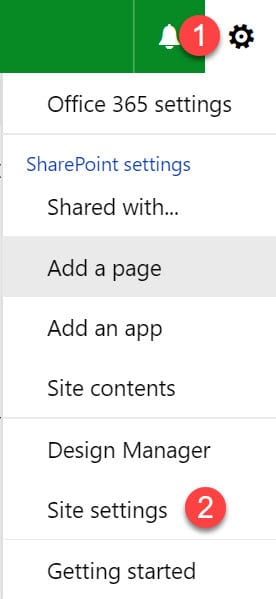
  3. Click Gear Icon > Site Settings
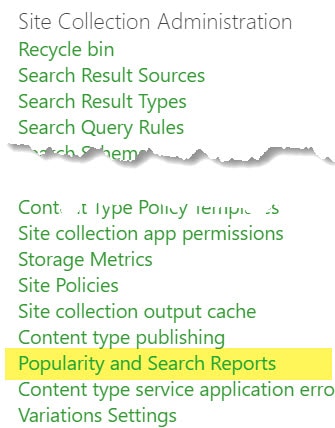
  4. Under Site Collection Administration, click on Popularity and Search Reportssearching for in your SharePoint
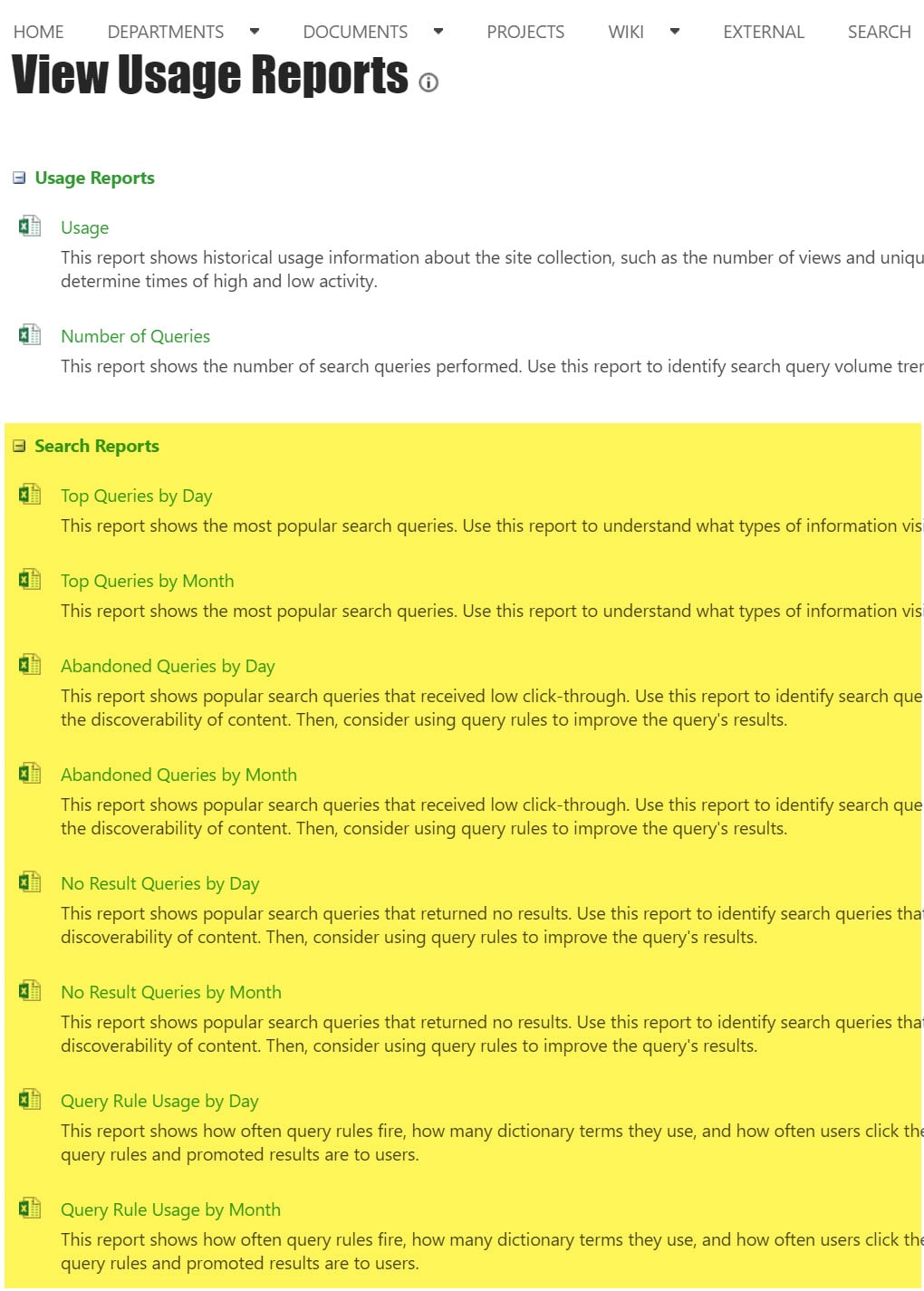
  5. Under Usage Reports page, you will be presented with a number of available search-related reportssearching for in your SharePoint
  6. The ones that you need are Top Queries by Day and Top Queries by Month
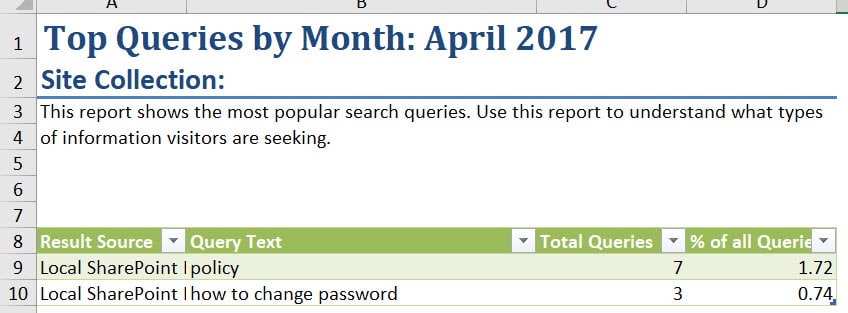
  7. Here is a snapshot of the Top queries by Month Report (all reports will download in Excel)searching for in your SharePoint

TO OBTAIN SEARCH REPORTS FOR THE WHOLE TENANT

Above instructions gave you info on searches for a given site collection.  But what if you want to have info on searches for all site collections (your whole Intranet)? No problem, here is what you got to do.
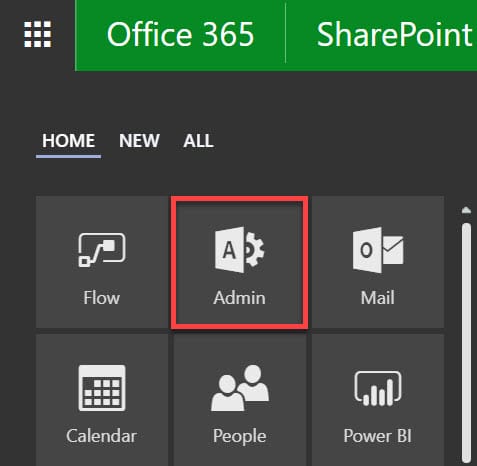
  1. Click on Office 365 App Launcher > Admin Tile
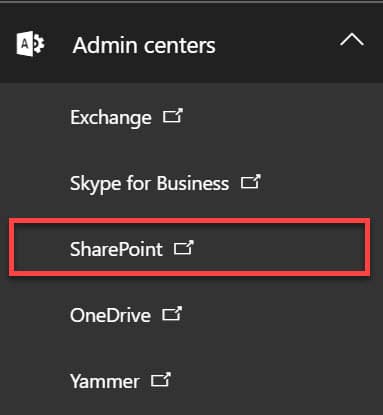
  2. Under Admin Centers, choose SharePoint
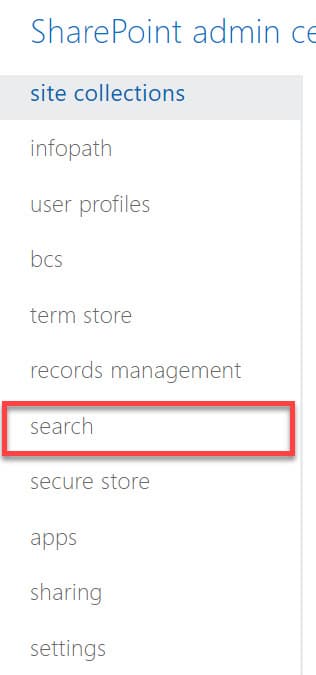
  3. Once in SharePoint Admin Center, click on Search on the left-hand-side
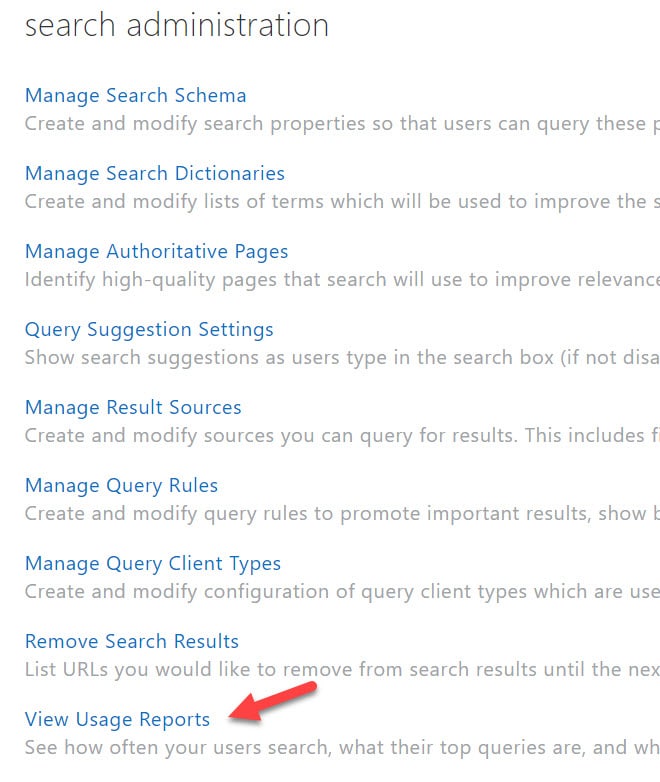
  4. Under Search Administration, click on View Usage Reports
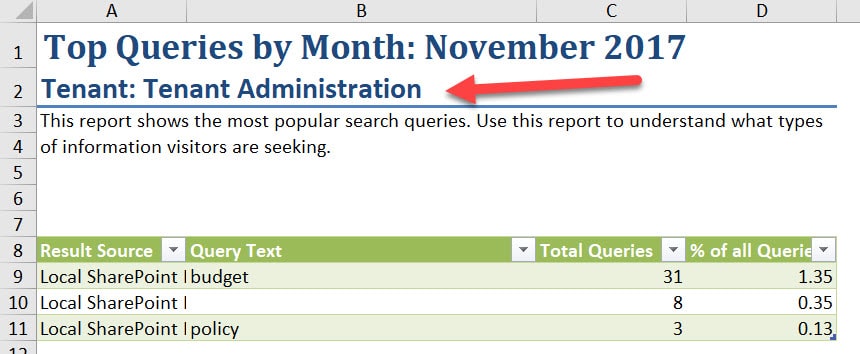
  5. You will now see a list of reports, just like at the site collection level, but this time they will cover the whole tenant. Here is an example of such report.

NOTES:

  1. These reports only have data on searches that users perform using classic search, not the modern (intelligent) search. To find out the difference between the two, check out this post.
  2. Reports only capture the last 12 month of history.
  3. There are also other reports available under Usage Reports above – feel free to check into some of the other ones you might find useful.

Friday, September 16, 2016

Qualities of Successful SharePoint Development

Image Title
Since the launch of the product in 2001, SharePoint has been stereotypically connected with web content administration and document management systems. However, it’s actually a much powerful platform capable of being designed to suit a wide range of solution areas. Every large scale project like a SharePoint development isn’t something to tackle lightly. Sure, there are many approaches to take, but remember these three things to ensure a successful SharePoint development.

Preparation is Key

The key to a successful SharePoint development is a meticulous preparation work which includes business oriented, both organizational as well as functional, requirement analysis to establish entire SharePoint infrastructure. It is also highly recommended for developers to establish at least three SharePoint farm environments: development, test, and production. Solutions, principally custom-coded applications, need to move from the development environment in which they were created to testing, where they are being authenticated, and then to production where they will ultimately reside.

Clear Governance

At the beginning of the SharePoint development project, it is crucial to establish all policies about configuration, development, and maintenance of SharePoint solutions. Many organizations, especially those that are newbies to SharePoint, at least initially often elect to institute a no-code policy, meaning that no custom code solutions are allowed in any environment. Those policies may even go as far as limiting not only on what third-party tools can be installed, but what out of the box SharePoint functionalities are available for configuration. Developers must consider all of those limitations when determining how to create and deliver the solutions to end users.

Developer’s Knowledge

Generally speaking, none of the SharePoint developer skills are in-born. We all need to continuously educating ourselves on new things about this platform. Whether it’s training on general web development practices, .NET, debugging, design, or specific hands-on SharePoint training, developers should be intimately familiar with all of the ins and outs of SharePoint’s out-of-the-box capabilities, as well as other major components of the entire SharePoint platform. Every developer should possess the knowledge to decide if out-of-the-box features are insufficient and how to make progress before jumping to custom coding as a solution. Also, bear in mind that there are no two identical environments out there that a developer can identically configure using out-of-the-box components and capabilities, and there are always going to be some sort of restraints justified by the client’s business needs and processes.
The success of a SharePoint development relies heavily on the effective use of best practice methodologies, as well as the developer’s ability to understand when to simply use out-of-the-box features, or take advantage of third-party add-ons and services, or a custom code to lower the effort required and simultaneously deliver the quality when developing full customized solutions.

Monday, August 15, 2016

SharePoint 2016 RTM and the Future of SharePoint event

Today marks Release to Manufacturing (RTM) of SharePoint Server 2016! This is an important milestone in the delivery of this significant release, which includes new capabilities for users, IT pros and administrators, as well as the next generation of hybrid capabilities for SharePoint. This also marks the general availability of cloud hybrid search for SharePoint Server 2013 and higher customers—allowing on-premises and Office 365 content to be surfaced in one search result.
We want to thank the thousands of users and IT pros who provided feedback through our UserVoice, our forums, social channels and our Technology Adoption Program (TAP). Your input—coupled with our learnings from running SharePoint at scale in Office 365makes SharePoint Server 2016 the most reliable, scalable, secure and high-performing SharePoint Server release ever.
Learn more in the SharePoint Server 2016 reviewer’s guide or download a trial of the RTM version. SharePoint Server 2016 will be generally available in the Microsoft Volume Licensing Service Center in early May.
We are also excited to announce the RTM of Project Server 2016 that is distributed as part of SharePoint Server 2016. Learn more in the Project Server 2016 release notes.

What’s next for SharePoint

Billions of documents are stored on SharePoint sites—making it the center of content management and collaboration for over a decade. Whether enabling students to work together or helping a company transform its entire intranet, we have continually evolved SharePoint to meet the changing needs of the digital workplace.
As work teams become more dynamic and digital content growth continues to skyrocket, SharePoint will play an ever increasing role in enabling content collaboration for the new way of working. As a part of Microsoft’s broader ambition to reinvent productivity, we are on a mission to make SharePoint more simple, mobile, intelligent and secure to help customers unlock the value of having it as an integrated part of Office 365. This year, we will release significant new innovations spanning user experiences, document collaboration, mobile enhancements and platform improvements that will redefine modern content collaboration.

Wednesday, July 6, 2016

Upgrading to the new SharePoint Online

This article focuses on the coming upgrade experience for existing SharePoint Online customers. New customers will receive these features without any effort on their part.

What to expect during upgrade

  • Office 365 customers will be notified approximately four weeks prior to their upgrade and will have the opportunity to postpone for a minimum of two months.
  • Review What’s new in SharePoint Online-top 10 to start planning how your company will take advantage of the new SharePoint Online capabilities soon to be at your fingertips.
  • Evaluate whether content and sites are old or unused, and if so, consider removing content or even whole site collections that are no longer necessary.
You can learn about all the Office 365 service upgrade options at the broader Office 365 Service Upgrade Center, including what you need to know about Exchange Online, Lync Online and Office client.

Test, upgrade, enjoy

The new SharePoint Online experience awaits you. Please take time to review the available documentation and the suggested steps to ensure a seamless transition for your company. Make sure you build in the right amount of time to test the new capabilities and look and feel before committing to it.
You are more in control than ever during your upgrade experience. With a little effort, existing customers will be able to quickly determine the method that provides the right level of testing, allowing you to quickly move to the latest Office 365 has to offer. Let us know via the Office 365 Community forums how you are doing and what we can do to help.

Saturday, June 4, 2016

What’s new in SharePoint Server 2013 for IT professionals

In today’s volatile economic climate, organizations require collaboration, communication, and productivity solutions to be both cost-effective and flexible. SharePoint Server 2013 can help you achieve new levels of reliability and performance, delivering features and capabilities that simplify administration, protect communications and information, and empower users while meeting their demands for greater business mobility.
SharePoint Server is a preferred choice among organizations to enable rich, seamless, and productive collaboration. SharePoint Server 2013 builds on the investments of previous SharePoint releases to:
  • Lower IT costs with a flexible and scalable collaboration platform.
  • Better manage risk by safeguarding your business with secure and reliable capabilities.
  • Increase productivity through cost-effective and efficient management.

Improvements
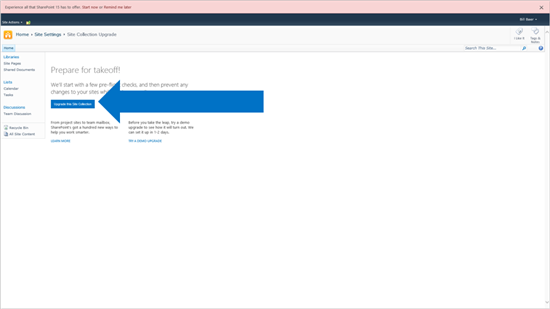

Changing software can be difficult, SharePoint Server 2013 simplifies the process, empowers the user, and improves resiliency and manageability through new features and capabilities designed to balance the needs of users with those of IT.
What’s new in SharePoint Server 2013:
  • Improvements to Deferred Site Collection Upgrade
  • Site Collection Health Checks
  • Evaluation Site Collections

Deferred Site Collection Upgrade

A completely revised, backward-compatible experience is designed to balance the needs of users with those of IT. Because changing software is often challenging, SharePoint Server 2013 enables IT to upgrade SharePoint Server 2010 without having to upgrade users’ sites and content. These upgrades are deferred to the users, allowing them to choose when the time is right and new evaluation site collections allow users to request an evaluation of the update prior to changing production content. If they’re satisfied with the new experience, site collection administrators then can change their content to SharePoint Server 2013. It’s important to note that whether you have deployed SharePoint Server 2010 on-premises or subscribe to SharePoint Online in Office 365, the full upgrade capability is available.

Site collection health checks

Users have access to site collection health checks, which can be run prior to or during the site collection upgrade process to detect issues and provide solutions for resolving them. Guidance is available every step of the way to help to ensure a successful update. Even after changes are complete, site collection health checks remain available to help ensure the reliability and accessibility of site collections throughout their lifecycle.

Evaluation site collections

Site collection administrators can choose to perform an immediate upgrade through Site Settings or request an evaluation upgrade site collection.
SharePoint Server 2013 enables site collection administrators to request a preview of their site prior to committing their production site collection to upgrade. This enables the site collection administrator and users to validate the look, feel, and functionality of a site collection and establish a plan to address any issues without impacting their production content.
Evaluation site collections provide the same overall functionality that the production site collection on which it is based provides, including search, customizations, and any associated timer job definitions run on the web application or server farm.

System status notifications

System status notifications present important information about a SharePoint deployment and its availability, whether during upgrades, routine maintenance, or conversion to read-only. Users stay up to date on changes because they receive a prominent banner on their sites that provides insight into the activity being performed, which helps reduce calls to the help desk and subsequent burden on IT.

New and improved service applications

Machine Translation Service

SharePoint Server 2013 introduces several new service applications, including Machine Translation Service. Machine translation is the use of software to translate text from one natural language to another, substituting one word in one natural language to its corresponding word in another.

The service enables you to reach more people with new cloud-based translation services capable of translating not only sites, but also their content. These services have a comprehensive set of APIs, REST, and CSOM support, so content can be pre-translated when needed, or translated on the fly by users-asynchronously, synchronously, or streaming.

PowerPoint Automation Services

PowerPoint Automation Services is a new service application in SharePoint Server 2013 that provides automatic server-side conversion of PowerPoint Presentations from one format to another, for example, a PowerPoint Presentation in Open XML File Format (.pptx) can be converted into Portable Document Format (.pdf) for archival purposes, distribution to clients who do not have Microsoft PowerPoint installed, or to protect the presentation from editing.

PowerPoint Automation Services supports conversion of Open XML File Format (.pptx) and PowerPoint 97-2003 presentation format (.ppt) to .pptx, .pdf, .xps, .jpg, and .png.

User profile service

User profile properties drive a broad set of SharePoint features-from social collaboration to authorization. SharePoint Server 2013 simplifies access to user properties with new profile import options that range from a traditional Microsoft Forefront® Identity Manager-based approach, to new direct Active Directory® Domain Services synchronization, to choices for using an external identity manager. Overall, you should see significant improvements in performance while also having greater flexibility.

Work Management Service

Software should work together. With SharePoint Server 2013, you can gain a 360-degree view of workplace activities and improve communication across your organization through connected systems. A new Work Management Service provides support for action-based event aggregation across Microsoft server products, including Microsoft Exchange Server, Lync® Server, Project Server, and SharePoint Server 2013. For example, users can edit tasks from Microsoft Exchange Server on a mobile phone, and the Work Management Service aggregates tasks from Exchange Server in the My Tasks SharePoint list.

Office Web Apps

Office Web Apps has evolved into a separate server product, Office Web Apps Server, which can serve multiple SharePoint farms for viewing and editing documents. In addition, a server or farm that runs Office Web Apps can be used to view files that are stored across data stores, including the following:
  • Microsoft server products, especially SharePoint Server, Exchange Server, and Lync Server.
  • File servers (URL accessible).
Third parties also can integrate with the service and provide access to documents in their stores, such as EMC Documentum, IBM FileNet, OpenText, and Oracle.
By separating Office Web Apps from the SharePoint farm, administrators can update servers more frequently, if desired. Administrators in large organizations can manage the scale and performance of Office Web Apps independent of the SharePoint environment. They also can serve multiple SharePoint farms, as well as Exchange Server and Lync Server, from one Office Web Apps Server environment.

App Management Service

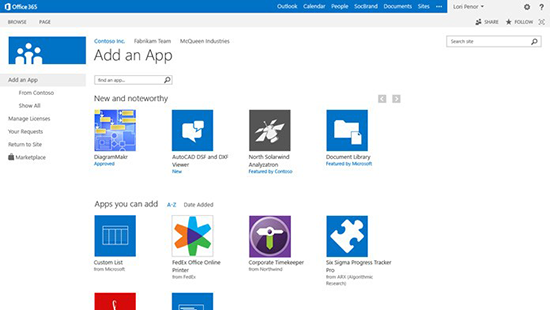
Applications are core to the SharePoint Server 2013 experience. A SharePoint application is a secure, focused solution that is easy to develop, deploy to a marketplace, monitor, and retire. Moreover, managing applications should be easy. SharePoint Server 2013 includes a new App Management Service designed to take the guesswork out of managing applications, permissions, and licensing, whether installed from the SharePoint Marketplace or Internal App Directory.
Rendering

Minimal Download Strategy

Minimal Download Strategy in SharePoint 2013 improves rendering performance when browsing content where large parts of the page do not change, which provides a more fluid navigation experience. For example, when navigating between a site’s home page and Shared Documents page, only the content that has changed between the source and destination page (controls and placeholders in the content area) are downloaded and the URL subsequently updated where the chrome is persisted.

In a typical AJAX scenario, controls interface with the server individually. Controls on the chrome in SharePoint are implemented with the URL at their core. Minimal Download Strategy implements a new download manager that interfaces between the client and server and retrieves the data as needed depending the initiating request. Each control on the page uses the download manager to update itself when necessary.

Operations and management

Windows PowerShell 3.0

SharePoint Server 2013 includes native support for Windows PowerShell 3.0 to help IT get more done in less time. Windows PowerShell 3.0 provides a comprehensive management platform for all aspects of the data center: servers, network, and storage. In this newest version of Windows PowerShell, sessions to remote servers are more resilient and can withstand various types of interruptions.
Learning Windows PowerShell is easier because of simplified, consistent syntax that resembles natural language. New Windows PowerShell commands are comprehensive and support the diverse tasks required at a data center, so IT professionals can automate basic and complex data center tasks with ease.

Distributed Cache Service

Data-driven applications have become increasingly prevalent as data is consumed from more diverse sources, such as business applications, syndicated feeds, and social contexts. SharePoint Server 2013 includes a new Distributed Cache Service built on the reliability of Windows Server® AppFabric® Caching. Distributed caching helps to ensure that no request takes too long.

Request Management

Request Management in SharePoint Server 2013 enables IT to prioritize and route incoming requests through a rules engine that applies logic to determine the nature of the request and the appropriate response. Request Management can be used to:
  • Route requests to servers with good health characteristics based on a new weighting schema.
  • Identify and block known bad requests such as web robot.
  • Prioritize requests by throttling lower priority requests to preserve resources for those of higher priority.
  • Route specific request types to other servers, either within or outside of the farm handling the request.

Storage and data platform

Shredded Storage

Shredded Storage is designed to reduce an organization’s storage footprint, minimize bandwidth, and improve performance through a new file save algorithm that ensures all write costs for file update operations are proportional to the size of the change being made to the file (and not the size of the file itself). Shredded Storage enables the storage of incremental updates to files in SharePoint Server by breaking a file into pieces and storing those pieces in Microsoft SQL Server®.

Disk I/O

With an increased need for larger quotas, storage costs remain a concern in many SharePoint environments, and there is generally very little room in IT budgets to multiply storage capacity by two, three, or even four times. In parallel, industry shifts and advancements have led to more high-capacity, low-cost commodity storage options. SharePoint Server 2013 can be deployed to a variety of storage architectures without sacrificing availability. Building on the performance improvements in SharePoint Server 2010, SharePoint Server 2013 delivers a significant reduction in disk input/output (I/O), lowering the bar for minimum disk performance. In addition, smoother I/O patterns reduce contention, making more storage options available to support a SharePoint Server 2013 infrastructure.

Resources

These improvements only scratch the surface of what’s new in SharePoint Server 2013 for IT Professionals.  Learn about more new features and capabilities through the resources below and let us know in the comments what your favorite new features of SharePoint are.
Wednesday, May 25, 2016

What’s new—Office 365

Office 365 Video provides you a single tool for uploading, sharing and playing back videos anywhere on your company intranet—whether you use SharePoint Online and/or SharePoint Server on-premises.
“It was difficult to find information in our original intranet. The Office 365 Video and Office Delve tools make it easy for our employees to reach into the firm and bring all our intellectual resources to bear on finding creative ways to solve problems. These tools are exactly what our employees are asking for.”
Deborah Youmans, senior manager of Collaboration Development at Booz Allen. See their full case study and video.
As you may have seen on the Office 365 Roadmap, we’ve been working hard to bring you numerous features and capabilities ranging from improving the upload experience, enhancing accessibility with closed-caption support, delivering analytics per video to provide aggregate trending patterns and more.
Watch the new Microsoft Mechanics video to see highlights of the new innovations—rolling out now.

Video viewer statistics

The new video viewer statistics gives people insights into how their videos are being viewed—highlighting viewing spikes where shared via email and Yammer or discovered within Office Delve. It shows aggregate data on how many people have watched your video and how long they spend watching it, visualizing the drop-off rates over time.
Office 365 Video March 1
Users can view interactive Viewer trends and Viewer engagement graphs from the Statistics drop-down menu underneath a video on its playback page.
Learn more about viewing statistics for a video in Office 365 Video.

Improved upload experience and capabilities

We are now rolling out an easier, more centralized way to upload videos. Start by clicking the universal Upload button in the top-left navigation and then selecting the desired channel for your video(s) from the list of channels you have upload rights to. Select or drag and drop videos to begin upload. During the upload, you will see an overall progress bar if you’re uploading multiple videos, plus individual progress bars per video. While this is happening, you can type the title and description details. Now that was easy and a time saver.
Office 365 Video March 2b
Easily upload videos, adjust and add title and description and see progress along the way.
Learn more about uploading videos into Office 365 Video.
Upload your own subtitle filesAfter the upload is complete, you can make your internal video communications more accessible. Office 365 Video supports the common webvtt format for subtitles, with the ability to have subtitles in multiple languages per video. You simply choose the language and upload the captions file. The Office 365 Video player then associates the captions when the viewer turns captioning on.
Office 365 Video March 3
Upload one or many webvtt caption format files to add closed captions to your videos.
Office 365 Video March 4
Viewers can then select their preferred language during playback from within the Office 365 Video player.
Learn more about adding subtitles or captions to a video.
Choose your own thumbnailOnce a video is in the system, you have the ability to choose the thumbnail. Options include selecting one of the four auto-generated thumbnails, uploading your own custom image or using the default thumbnail. The selected thumbnail image represents the video throughout Office 365including in the Office Delve activity feed, when embedded on a SharePoint team site (on-premises and online) or when placed within an internal blog post.
Office 365 Video March 5
Easily manage choosing your own thumbnail for video(s) you have uploaded.
Learn more about changing a thumbnail for a video.
Owner and people metadataBeyond title and description, Office 365 Video also shows who uploaded the video and the various people who are in the video. This enhances the discoverability of the video and highlights the main speakers; it, too, enhances when and how your videos appear in other users’ Delve activity feeds pivoting off of the relevant context of who knows who.
Office 365 Video March 6
You add people involved by doing a simple name lookup based on your active directory.
Easily insert a video into a SharePoint page or team siteWe want to save you clicks when you choose to broaden your video communications throughout your intranet. So, now it is easier than ever to embed a video—managed from within Office 365 Video—into a SharePoint Online page or team site. There is now an Office 365 Video button on the Insert ribbon tab to display a dialog box where you can quickly search for and select a video from your Office 365 Video portal.
Office 365 Video March 7b
Click the Office 365 Video button from the Insert ribbon menu when editing a SharePoint Online team site.
Read more about the value of embedding video throughout your intranet. And then learn more about how to embed a video into a SharePoint team site from Office 365 Video.

New admin controls and management capabilities

Download for offline viewingStay informed and up to date even when you are not connected to the Internet. Office 365 Video enables the ability to download the file to your local machine or easily transfer to your smaller device for times when you need to view a video offline or to show a video in a location without Internet access. Channel admins can control who is able to download videos based on the same permissions for the channels (owners, editors and viewers).
Office 365 Video March 8
Once enabled, viewers can take a copy of the video for offline playback by clicking the Download button directly under the player on the player page.
Learn more about how to set download permissions within the channel permissions settings.
Yammer settings per channelVideo channel owners in organizations that have Yammer enabled can now control the default Yammer group that video comments are posted to or disable Yammer comments altogether for a channel.
Office 365 Video March 9
The new Yammer control tab, within Channel Settings, gives channel owners flexibility to turn Yammer conversations on or off or to have comments posted to a specific Yammer group.
Learn more how to manage and control Yammer settings per channel.
Restore a video in the Recycle BinAdmins can now restore videos that have been deleted by a user. Deleted videos sit in the Recycle Bin for 90 days, and it is now possible to recover and restore videos from the Recycle Bin. To restore a video in the Recycle Bin, simply select the video and click Recover Selection. The video is resubmitted into the system and prepped for playback.
Learn more about deleting and restoring videos from the video Recycle Bin.
Office 365 Video now deployed in U.S. Government zone (GCC) and China datacentersCustomers whose tenants are in the Government Community Cloud (GCC) and China datacenters now have Office 365 Video available to them for their dynamic, secure and private internal communications.

Monday, April 4, 2016

SharePoint Department Site template… doesn’t exist

Why you should never create SharePoint Department Site template

The objective of creating project site templates is pretty obvious. You are running a number of projects in your organization and want all you project or team sites to look the same, have standard way of organizing documents and other content. In other words, you want to enforce certain project management methodology and business processes.
With departments sites, it is a different story. I frequently get requests from clients to help create Department site templates and my response is always “it does not exist“. Here is why. I yet have to see 2 departments in one organization that will organize documents and other content in exactly same way. For example, it is very unlikely that your Marketing team will organize documents same way as an Accounting team. One might use folders, another metadata and metadata will most likely be different anyway.
So while some basic elements like branding, calendars, contact lists might be the same, for the most part, various Department sites will look and work differently. And will be used by different sets of employees.
Enforcing a single template on all departments is a sure way to kill SharePoint User Adoption. Make sure to empower your employees and address their unique needs by customizing their department sites according to their requirements and business processes.