Friday, February 17, 2017

Office 365 Hub Sites Are Here! A Few Tips

It’s great to see the Hub Sites promised at Ignite last fall rolling out finally. Hub Sites will be the capability which allows us to associate related “modern” sites with each other. This is probably most common in Intranets, but other examples might be a set of Project sites, a multi-layered HR sites, etc. Keep in mind that the maximum number of Hub Sites today is 50, so plan carefully. (That’s a bigger number than you think, in most cases.)
I’ve been able to play with them a little in my tenant, and I thought I’d post a few observations based on confusion I felt as well as questions I’ve seen. You can read all the nitty-gritty details in this post from Mark Kashman (@mkashmanOrganize your intranet with SharePoint hub sites, but here’s what I felt I needed to know.
To setup a new Hub Site in your Office 365 tenant, you only need to run a little Powershell. (I wish the way we have to first work with new capabilities was never spelled P-o-w-e-r-s-h-e-l-l, but that’s what it is. Build us a UI!) I don’t run Powershell all that often, so I needed a little refresher. Here are the steps:
  • Open the SharePoint Online Management Shell. If you haven’t installed it yet, you can download it here.
  • Run the following command:
    Connect-SPOService -Url https://YourTenant-admin.sharepoint.com -Credential$userCredentialRegister-SPOHubSite https://YourTenant.sharepoint.com/sites/YourHubSite
    Yes, you must be a SharePoint Admin (or above) to do this. If you aren’t one, go bake your SharePoint Admin some chocolate chip cookies.
    One thing to add, from Beau Cameron on Twitter. The latest SharePoint Online Management Shell now asks for Principals  as a part of Register-SPOHubsite  command. You can create a hub site without it, by just hitting “enter”. This is all a moving target!
  • If you are fine with any Site Owner adding their site to this Hub Site, you can stop here. However, you’ll probably want to lock it down to a specific set of people. To do this, you create a mail-enabled group and give it permission to add sites to the Hub Site. For my Hub Site at /sites/Intranet, this goes like:
If the Powershell runs successfully, you’ll see a response that looks something like this:
KWizCom Forms App
The SiteId  there is what will become the Managed Property DepartmentId  in your search schema. The DepartmentId  is applied to content in the associated sites, which enables the content roll ups we get in Hub Sites.
BTW, if you’re just playing around and you want to demote the Hub Site to a regular site, you can run the Unregister-SPOHubSite  cmdlet.

I ran the Powershell and I have a new Hub Site. I’ve associated one other “modern” site with it. A few questions came to me immediately as I poked around. Melissa Torres at Microsoft was kind enough to answer my questions on the Tech Community,
After I set a new theme on the Hub Site, is there a lag before I see it on the associated site(s)?
Yes it’s not automatic, can take up to 2 hours.
I have two different browser tabs open to the Hub Site. I manually added a link to the associated site in one tab, but don’t see it in the other, even after a Ctrl-F5. My guess is something is cached that shouldn’t be.
Correct it is due to caching. We’re working on addressing this issue of switching between tabs.
I published a News item in the associated site, but don’t see it in the Hub Site. What’s the delay supposed to be there? Are all News items rolled up?
We use search to rollup content from the associated sites so it’s subject to that, and yes all news items rollup.

In case you were wondering, the HubNav ends up right below the Top placeholder, and above the mainContent.

Don’t have access to a Hub Site? Having questions about how it all works? Feel free to add your questions in the comments, and I’ll try to reply with answers.

Tuesday, January 24, 2017

SharePoint communication sites begin rollout to Office 365 customers

During last month’s SharePoint Virtual Summit, Microsoft unveiled SharePoint communication sites—beautiful, dynamic sites that let you reach a broad internal audience, and that look great on the web, in the SharePoint mobile app, on PC and on Mac. Today, they are excited to announce that communication sites are now rolling out to Office 365 First Release customers, followed by full worldwide rollout to Office 365 customers in the coming months.
Image scrolls through a SharePoint communication site in desktop view.

Create a beautiful communication site in seconds

Communication sites are perfect for internal cross-company campaigns, weekly and monthly reports or status updates, product launches, events and more. To help you jumpstart getting your message out fast, communication sites provide configurable templates for the sites and pages within. When you click Create site from the SharePoint home in Office 365, you have a choice of three initial site designs:
  • Topic—Select the Topic design when you have a lot of information to share, such as news, events and other content.
  • Showcase—Use the Showcase design to feature a product, team or event using photos or images.
  • Blank—Start with a blank site and make your design come to life quickly and easily.
Images showing how each of the different three site design options look on a desktop and mobile device.
Communication site designs (from left to right): Topic, Showcase and Blank.
And it is easy to tell your story. Once your new site is created, simply drag-and-drop to reorganize web parts on the page to bring your use cases and scenarios to life. News and pages allow for multi-column layouts to represent your message in a meaningful, intuitive fashion.

Share your plans and updates in engaging, interactive ways

Communication sites allow people to create and share recurring updates beyond email. When you create a page on a communication site, you can embed documents and video, and dynamically pull in real-time data from across Office 365, including documents from SharePoint, Power BI reports, Microsoft Stream videos and Yammer discussions. The resulting page is a rich and dynamic communication. And the page persists on the site, so people can refer to it easily, even as the membership of your team changes, so new members can more easily get up to speed.
Image showing how a communication site displays all the data pulled in from Office 365, including news, events, key documents, resources and contacts.
The new capabilities for the rich section layouts and new web parts can be utilized on SharePoint team sites as well.

Consume, create and connect from your mobile device via the SharePoint apps

It’s easy to access, engage with and create content for communication sites from any device. The full site, pages, news, navigation, search and more are natively viewable, functional and engaging. Read a page, create a news article, engage in a Yammer conversation—all in the context of the site—from within the SharePoint mobile app experience.
Image runs through a SharePoint communication site in mobile.
You can download the SharePoint mobiles apps for iOS and Android today, and the new features will be available in the coming weeks. Learn more about the SharePoint mobile app for iOSSharePoint mobile app for Android and SharePoint app for Windows 10 Mobile.

Communication sites help further refine and enhance your message

Beyond what we shared during the SharePoint Virtual Summit, communication sites have additional capabilities to further refine and enhance your message.

Make your home page and sub-pages look great

  • Full-width layouts—The Hero and Image web parts can be placed in a section layout that spans the page from left to right, giving you ways to emphasize your most essential information.
  • Enhanced title region with custom header image—Visually represent your home page, news and subpages with a compelling header graphic and title. You control what portion of the image is the most important, so it looks great, and as intended, across web and mobile experiences.

Continue the discussion in context to ensure reach, retention and engagement

  • Comments on pages—Each news article and page can have its own set of comments. It is possible to use the Yammer web part for broad discussion scenarios as well as targeted responses to engage your viewers on the sole message and content on the page—all keeping within the context of the page.
  • Share news via email—When you share news via email from a communication site, it’s not just a blue link; it’s a visual, informative preview that adds context to both the email and the news article itself. Within the email, the recipient(s) will see a thumbnail, title, description and an optional message from the sender.

Dynamically pull in and display data, documents and information via web part improvements

  • Power BI and Microsoft Stream—Bring in interactive reports using the Power BI web part, and embed single videos or full channels from Microsoft Stream—the single destination within Office 365 for your cross-company video management. Both Power BI and Microsoft Stream are now generally available.
  • GIF support—When you add an Image web part into a news article or page, you can now include animated GIFs in your layout.
  • New “See all” pages—When there is more content than can be shown within the first view the Highlighted content and Site activity web parts, you can click See all to go to a full-page experience to see all the content and activity.
  • Updated News web part—Showcase your news using multiple layouts to highlight what’s important with greater flexibility. You can use the default Top story layout, view news as a list or side-by-side.
Learn more about using web parts on pages and news, which highlights all web parts available in SharePoint Online.

Mark your calendars

Join us for one or more of our events in the coming days and weeks to share and explore the value of communication sites.
  • SharePoint communication sites AMA—On Wednesday, June 28, 2017 from 9–10 a.m. PDT, bring your questions and feedback to the SharePoint communication sites AMA within this dedicated SharePoint community space of the Microsoft Tech Community for SharePoint. We’re inviting our deepest business and technical subject matter experts for an active, informative hour—driven by YOU!
  • Jeff Teper takes over @SharePoint—On Tuesday, July 10, 2017 from 9:30–10:30 a.m. PDT, Jeff Teper, corporate vice president for SharePoint, OneDrive and Office, will take over the @SharePoint Twitter handle. He’ll tackle your questions and feedback both with written responses and video snippets as only he can—no tweet left behind!
  • LIVE customer + MVPs panel webinar—On Wednesday, July 13, 2017 at 8 a.m. PDT, join in to hear how one of our customers, Shire, successfully planned and implemented their new digital workspace—inclusive of communication sites. You will hear both from Shire employees and Office 365 MVPs. Register today.
  • On-demand webcast—On Wednesday, July 19, 2017, Farren Roper and I present the “SharePoint: Inform and engage your employees” business webcast. Be the first to be notified when it’s available: sign up today. And in advance, read the new, related eBook, “4 secrets to a connected workplace.”
Throughout the lifecycle of your projects, launches and internal campaigns, let the SharePoint intranet help you move seamlessly from concept to final product. The powerful, dynamic SharePoint user experiences let you clearly communicate your message throughout your company.

Tuesday, December 6, 2016

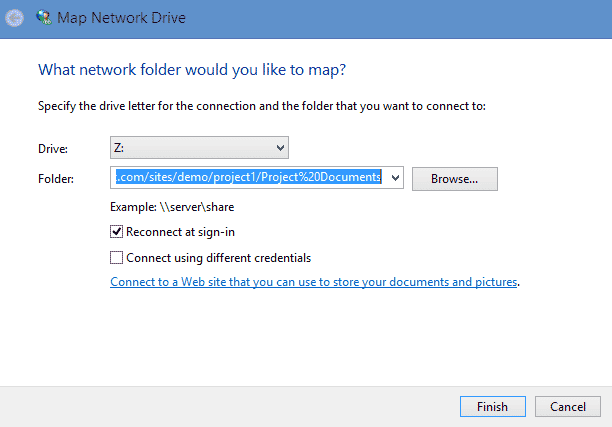
Stop mapping SharePoint Document Libraries as a network drive!

 see this happening over and over again. Companies purchase Office 365 subscription, create a single site in SharePoint with a single document library, migrate their whole file share into that single library, map it as a network drive and call the project complete. What usually follows is a dismal user experience from a performance standpoint and badmouthing of SharePoint and anyone who made a decision to migrate to Office 365. If this sounds familiar – keep reading.
I have written a post previously where I cautioned against using SharePoint as a file share. When you map a SharePoint document library, you essentially say:
“We want to collaborate the same way we did for the last 20 years”
If this is your wish, so be it, but I would argue against using SharePoint for this purpose. Because you will fail miserably. That’s not what SharePoint was designed for. Below I would like to present few reasons why, in my opinion, you should not create any mapped drives with SharePoint.

REASON 1: TECHNICAL LIMITATIONS

Sooner or later you will encounter SharePoint technical limitations.
  • 5,000 item limit. Read here to learn more
  • URL length. If you have a very deep folder hierarchy, you will encounter it one day. Click here to learn more.
  • Performance. As your library grows in size, you will see degraded performance

REASON 2: USER EXPERIENCE

The best practice in SharePoint is to create many sites and many libraries as you split content by function and security. Even on a single site, you might have one, two, four document libraries. How will you handle this with mappings? Are you really looking to create like twenty mappings?  ðŸ™„
mapping SharePoint Document Libraries

REASON 3: SEARCH

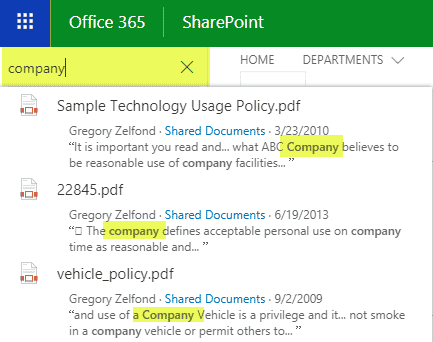
As I have written previously, SharePoint search is quite robust. The new, modern search is just awesome! Search in SharePoint goes against content within the document as well as metadata. When you search a mapped drive, you are using the regular Windows Explorer search. Should I even say more here…

REASON 4: METADATA

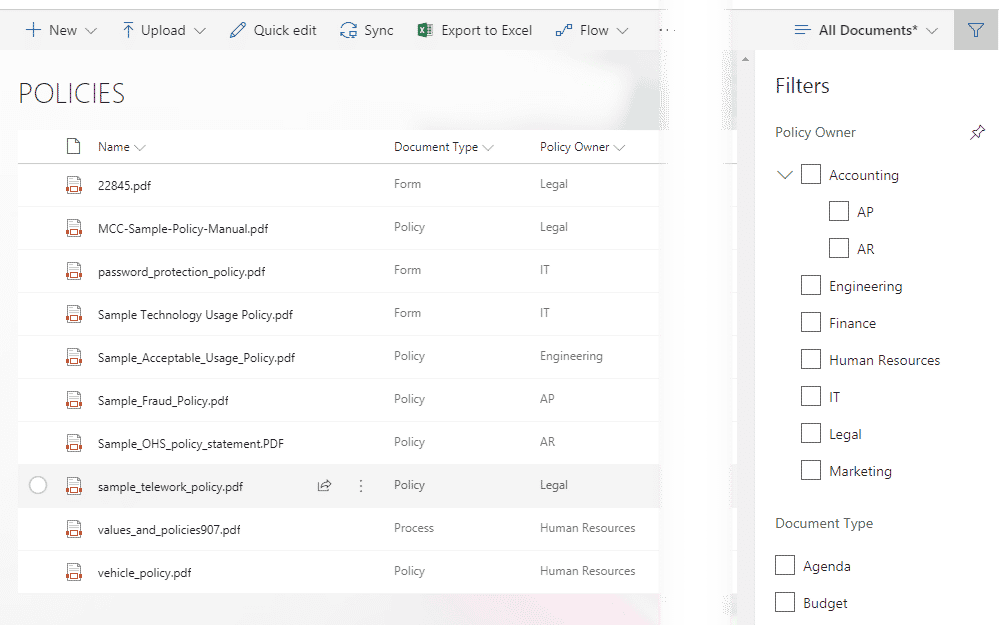
If you map a drive in SharePoint, you are missing big time on metadata. There is no metadata in Windows Explorer. You have to access your files via SharePoint to be able to tag, search and filter based on metadata.

REASON 5: VERSIONING

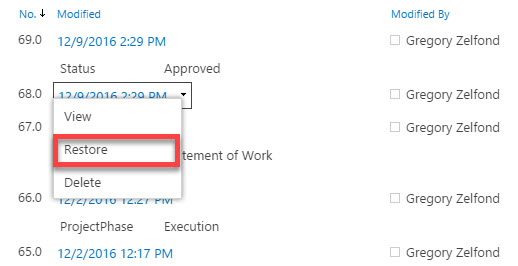
Versioning, in my opinion, is one of SharePoint strongest features. Ability to see and track changes, ability to access and restore previous versions brings collaboration to a whole new level. That is if you use SharePoint. If you map a drive in SharePoint – you won’t have access to these features in Windows Explorer.

REASON 6: MODERN DOCUMENT LIBRARY

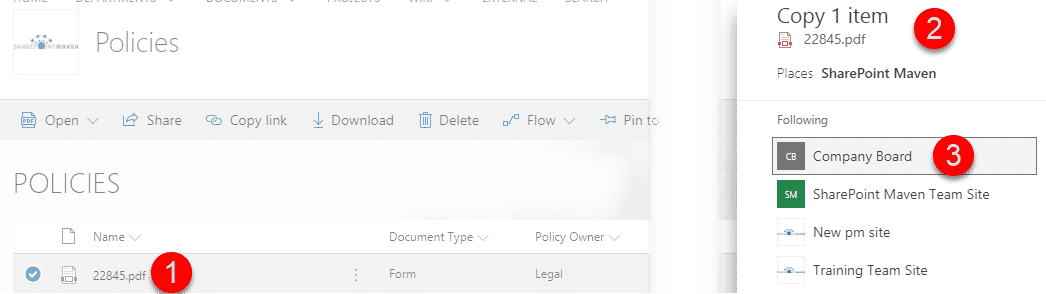
Classical library experience that we had with all the old versions of SharePoint was pretty boring and did not allow for trivial commands like Copy and Move. Now that we have Modern Library experience in SharePoint Online, you can do the same things like you used to in Windows Explorer. You can copy and move files, for example, between folders, sites, and libraries right in the browser. So all the reasons that prompted you to work in Windows Explorer are no longer relevant.

REASON 7: SAVE AS

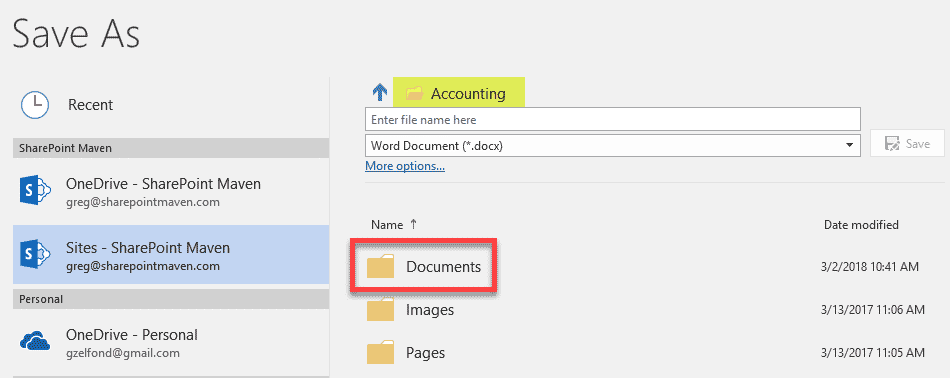
One of the reasons for using mapped drives is the fact that it is easier to do Save As from MS Office documents to your C: Drive. With the recent update to MS Office, this limitation is no longer there, and you can easily save files from MS Office directly to SharePoint. Click here to learn more.

REASON 8:

“Intelligence is the ability
to adapt to change”
— Professor Stephen Hawking (1942 – 2018)

ALTERNATIVE TO MAPPING SHAREPOINT DOCUMENT LIBRARIES

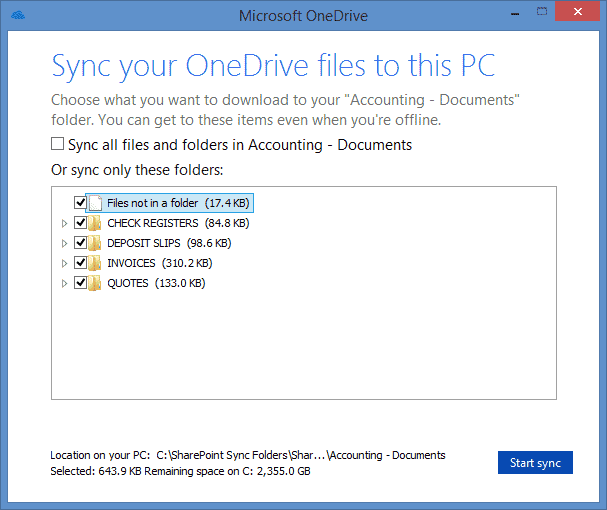
If none of the above reasons convinced you and you truly want to work with files like in 1995, may I suggest the Sync option? You can always sync your files to your desktop using the new OneDrive for Business sync client. While I am not a huge fan of sync, it does the job and makes the library or certain files and folders available on your desktop if need be.
Hope you found these reasons convincing enough to drop the old habit and move yourself to the 21st century. You don’t use telegrams anymore because we have email, so I suggest that you also work with documents using SharePoint browser experience instead of the outdated file share approach by mapping SharePoint document libraries.

Saturday, November 12, 2016

Wondering if you should buy a SharePoint book currently on the market or wait few more months for a better one?

The following list will allow you to get a sneak preview of some interesting SharePoint books coming out in the next few months and some of them just published. The authors links will point you to their LinkedIn profiles to connect with them and luckily get some additional questions answered related to the books.
I will try to keep this list as up-to-date as possible, so make sure you’re coming back regularly to see what’s new in the stores.

Soon To Be Published


Learn Windows PowerShell in a Month of Lunches
By: Don JonesJeffery Hicks
Publication Date: December 1, 2016
PowerShell provides a single, unified administrative command line from which to control and automate virtually every aspect of a Windows system. It accepts and executes commands immediately, and scripts can be written to manage most Windows servers like Exchange, IIS, and SharePoint. This updated book covers PowerShell features that run on Windows 7, Windows Server 2008 R2, and later. This edition is appropriate for PowerShell version 3 and later. There is coverage for new PowerShell version 5 features like PowerShellGet, however PowerShell fundamentals are unchanged.
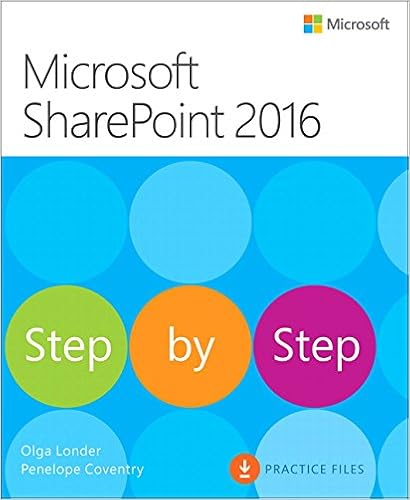

Microsoft SharePoint 2016 Step by Step
By: Olga Londer
Publication Date: December 3, 2016
Get productive fast with SharePoint 2016, and jump in wherever you need answers: brisk lessons and colorful screen shots show you exactly what to do, step by step – and practice files help you build your skills. Fully updated for today’s powerful new version of SharePoint, Microsoft SharePoint 2016 Step by Step shows you how to do all this:
  • Customize your team site’s layout, features, and apps
  • Manage and share ideas, documents, and data
  • Capture and organize content into lists and libraries
  • Automate business processes with built-in workflows
  • Use social features to communicate and collaborate
  • Work with SharePoint’s business intelligence features
  • Publish content using enhanced web content management
  • Use SharePoint with Excel, Access, Outlook, and Lync
  • And much more…

Recently Published


Cloud Pro – The next step for IT pros
By: Ben CurryBrian Laws
Publication Date: October 23, 2016
Cloud technologies are transforming the roles of experienced IT professionals. Cloud Pro – The Next Step for IT Pros brings together all the knowledge you need to smoothly transition from traditional roles to successful cloud administration in Microsoft or hybrid environments. It has been carefully crafted to reflect IT professionals’ real challenges in making the cloud transition, including maintaining full control when you’re a “tenant” on someone else’s servers, and maximizing your productivity through automation. You’ll find specific guidance on administering key Microsoft technologies including Office 365, Exchange Online, SharePoint, Azure, OneDrive, and more. Along the way, Ben Curry and Brian Laws identify new and changing job roles for cloud administrators, and offer practical guidance on migrating your skills to them.


Exam Ref 70-339 Managing Microsoft SharePoint Server 2016
By: Troy Lanphier
Publication Date: October 7, 2016
Direct from Microsoft, this Exam Ref is the official study guide for the new Microsoft 70-339 Core Technologies of Microsoft SharePoint 2016 certification exam. It offers professional-level preparation that helps candidates maximize their exam performance and sharpen their skills on the job.
Microsoft Exam Ref publications stand apart from third-party study guides because they:
  • Provide guidance from Microsoft, the creator of Microsoft certification exams
  • Target IT professional-level exam candidates with content focused on their needs, not “one-size-fits-all content
  • Streamline study by organizing material according to the exam’s objective domain (OD), covering one functional group and its objectives in each chapter
  • Feature Thought Experiments to guide candidates through a set of “what if?” scenarios, and prepare them more effectively for Pro-level style exam questions
  • Explore big picture thinking around the planning and design aspects of the IT pro’s job role


Programming Microsoft Office 365: Covers Microsoft Graph, Office 365 applications, SharePoint Add-ins, Office 365 Groups, and more (Developer Reference)
By: Paolo Pialorsi
Publication Date: September 9, 2016
Every day, millions of people use Microsoft Office 365, the subscription version of the world’s most popular productivity platform. If you’re a developer, Programming Microsoft Office 365 will show you how to build custom solutions that access and interact with their Office 365 data right from within your apps, on practically any mobile, web, and desktop platform.
Leading Office solutions developer Paolo Pialorsi offers practical, code-rich, task-based coverage of every key aspect of Office 365 development. You’ll learn hands-on by building a complete, start-to-finish solution with the newest major release of Office 365.
You’ll master powerful techniques leveraging SharePoint Online, Microsoft Azure Active Directory and other Microsoft cloud services, Microsoft OneDrive for Business, Microsoft’s new REST APIs, and exciting new products such as Microsoft Delve and Office Graph.


Building a SharePoint 2016 Home Lab: A How-To Reference on Simulating a Realistic SharePoint Testing Environment
By: Stacy Simpkins
Publication Date: July 28, 2016
This book is a step-by-step guide to building your own SharePoint farm in a home lab setting. Learn how to build a windows domain and then join servers into the domain in order to create your own testing and learning environment. After you get the domain stood up, where you go from there is up to you. This book will help you learn how to spin up SharePoint in a least privileged fashion.
This isn’t strictly a SharePoint book, though. For example, if you’re not a SharePoint professional and are just looking to create a working windows domain for other purposes; the home-lab domain that you’ll create will work great for Exam preparation for non-SharePoint purposes. You could even use it for learning how to install Exchange Server. After all, it’s your Home Lab domain.


SharePoint 2016 For Dummies
By: Ken WitheeRosemarie Withee
Publication Date: July 25, 2016
Learn all the ins and outs of SharePoint, launch your site, collaborate with coworkers, and go mobile. There’s no doubt about it, SharePoint is a complex creature. But when broken down into easily digestible chunks, it’s not quite the beast it appears to be right out of the gate—that’s where SharePoint X For Dummies comes in! Written in plain English and free of intimidating jargon, this friendly, accessible guide starts out by showing you just what SharePoint X is, translating the terminology, and explaining the tools. Then it helps you create a site, work with apps, and master basic SharePoint administration. Next, you’ll learn to use SharePoint X to get social, go mobile, manage content, and connect with others through working with Office 365, archiving documents, developing workflows, and so much more.


SharePoint 2016 Search Explained: SharePoint 2016 and Office 365 Search On-Premises, Cloud and Hybrid for Search Managers and Decision Makers
By: Agnes Molnar
Publication Date: June 30, 2016
SharePoint 2016 comes with major changes in how Search works, including a new and enhanced Hybrid Search model. Regardless of whether your organization is on-premises only or in the cloud with some content and/or applications, this book will help you create a search strategy when considering SharePoint 2016. World-renowned consultant and author Agnes Molnar helps you plan and implement a SharePoint 2016 / Office 365 search environment that meets the needs of your business. This must-have book covers the following SharePoint 2016 and Office 365 Search topics: Business Cases and Challenges Requirements Gathering Search Based Applications How the Search Engine works – Overview Search User Experience Metadata Search in Office 365 Office Graph and Delve Search Quality Management Tags: SharePoint 2016, Office 365, Search, Discovery, Findability, Cloud Search, Hybrid Search, Office Graph, Office Delve, Search Explained, Information Overload, Information Management, Knowledge Management, Search-Based Applications, Search-Driven Applications.


Microsoft Dynamics CRM 2016 Customization – Second Edition
By: Nicolae Tarla
Publication Date: May 27, 2016
Microsoft Dynamics CRM is a Microsoft solution to satisfy the various needs of customer relationship management and is already equipped to be flexible to meet the needs of businesses. With Microsoft Dynamics CRM 2016, many new features were added for social, marketing, sales, and integration with other tools. These features add many dimensions to customization.
This book will not only showcase how CRM can be customized, but will also be your guide on how the latest advancements in Dynamics CRM 2016 can be used to benefit your business.
You will learn how to enhance the functionality of Microsoft Dynamics CRM 2016 and use it to serve different businesses of various scales. You will see how to get ready to customize CRM and then quickly move on to grasp the CRM app structure, which will help you customize Dynamics CRM better.