Monday, November 20, 2017

8 Ways to prepare your move to Yammer [Infographic]

1 "Why use Yammer?"

  1. The first step is to have the answer to this question. You need to be able to explain the main benefits to people that may be more resistant.

2 We love Yambassadors

  1. Make sure you have some in your organization that will start discussions as well as guide people towards Yammer. It won't be done overnight so you need to be patient.

3 Understand Yammer

  1. You need to understand how Yammer works "properly" before using it. Plan in detail the way you want your network to be constructed.

4 Legal and Compliance

  1. You need to get Legal and Compliance on your side. You will appreciate it a lot.

5 Be prepared for confused users

  1. Have a community manager or resource/support person that users can go see if they need help. It will make a big difference, because trust me, there are always a few confused ones.

6 Yammer Usage Policy

  1. You need to have clear usage policy.

7 One step at the time

  1. Get your things in order before deployment and adoption. Having everything figured out beforehand will help you.

8 Rewards?

  1. You can always think of ways to reward people for using Yammer. It's a little push that will make them want to use Yammer and learn how to do it.

Saturday, September 9, 2017

What are SharePoint Sites, Pages and Web Parts?

What are SharePoint Sites, Pages and Web Parts?

To put everything in simple terms, SharePoint consists of 3 major building blocks:
  • Sites – used to organize various types of content (web parts)
  • Pages – used to display content (web parts) on a site
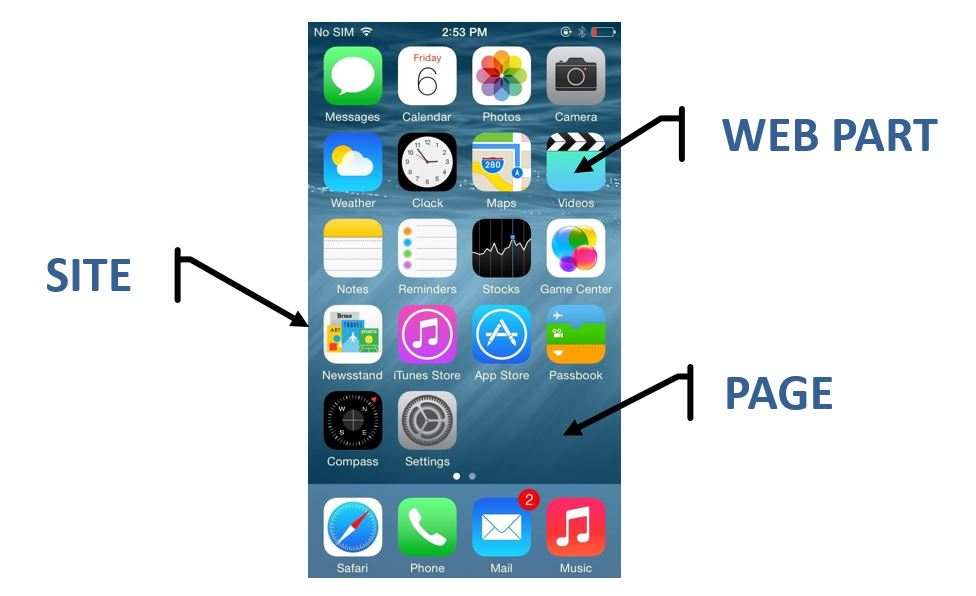
  • Web Part – used to store particular content/information (i.e. documents, events, contacts). Think of this as smartphone apps.
To put this in perspective, below is an image that depicts the correlation between SharePoint and iPhone®. If you think of the whole phone as SharePoint Site, the phone screen would be your SharePoint Page (and you can create multiple screens on the phone, just like pages in SharePoint) and your phone Apps would be SharePoint web parts. Does it make sense?
sharepoint-iphone-analogy

What are SharePoint Sites?

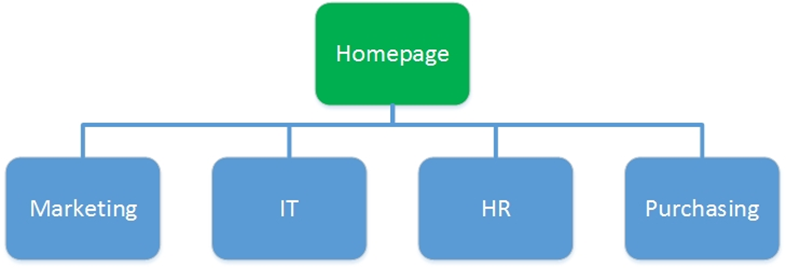
SharePoint sites are essentially containers for information. The way you store and organize things in SharePoint is by Sites. Think of them as separate rooms in a house, with each site/room serving specific purpose or catering to specific audience. Each site in SharePoint might have unique security and content. For example an organization might have 20 sites. 1 site for homepage, 10 sites for departments – one site per department, and 9 sites for projects (1 site per project). Obviously this is just an example, since you can have as many sites as you want, as long you need to have unique security (i.e. new department, new project, etc.).


The image below shows typical site hierarchy.
You can create multiple levels of subsites, however, keeping the structure as flat as possible is recommended
site_collection_structure

What are SharePoint Pages?

Now that we are clear what SharePoint Sites are, let’s talk about SharePoint Pages. SharePoint pages are nothing more than a means to display content on a given site. It is like when you prepare lots of dishes for your guests and put it all in a table and run out of space – you pull another table and put the dishes there – same thing. So each site might have multiple pages. When you want to display content on a screen and you run out of space, you can create another page. One important thing to remember is that the page is not a method to limit security to content – it is literally just means to display and organize that content on the site and present it to the end user.
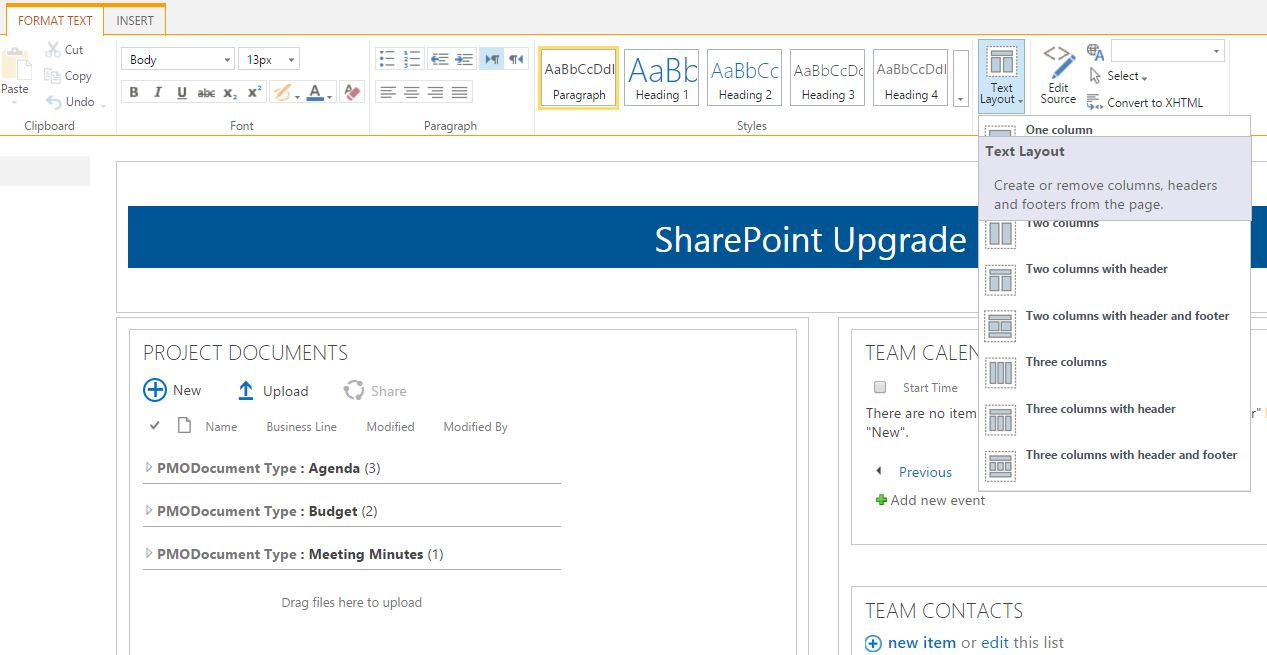
Image below shows an example of page being edited. Once in “Edit” mode, you can change layout of the page, order of web parts, etc. And of course, you can add new/additional pages.
editpage

What are SharePoint Web Parts?

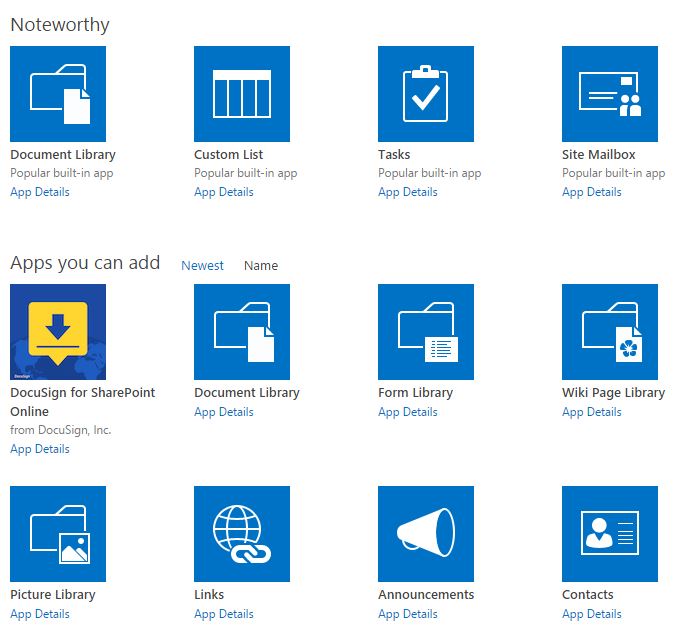
So now that we know what sites and pages are, the last building block of SharePoint is called Web Parts. What are SharePoint web parts? Essentially they are mini-applications that allow you to store certain types of content. The analogy here would be your smartphone, like iPhone®. It has may apps available for you to store content. For example, if you want to store contacts, there is an app for that. If you want to track events, there is a calendar app. There is also an app for weather, maps and so on. You get the idea. Same thing with SharePoint.  Microsoft has created these  built-in apps (web parts) that allow you to store content. For example, you want to store documents – there is an app (web part) for that – it is called Document Library. You want to store events – there is a web part called Calendar. There are other “common”  web parts such as Contacts, Tasks, Issues and so on. The out of the box web parts are accessible via Site Contents > Add an App.
addwebparts
For those on Office 365, there is also a SharePoint Store, where you can buy 3rd party apps (web parts), just like Apple’s App store – same idea.
So that was the concept of SharePoint Sites, SharePoint Pages and SharePoint Web Parts.

Wednesday, May 10, 2017

Microsoft Flow – Getting your SharePoint field values

When using Microsoft Flow to trigger on SharePoint list items I often use the Initialize variable actions to get the values of my fields. You could of course use Dynamic content at any stage of your flow, but when you play around with the initialize variables you will find some maybe unexpected behaviours.
First of all I created a SharePoint list with one field for each field type.

Then I created a flow with a that initializes multiple variables.

Yes/No

Then the first field that I looked at Yes/No shows quite nicely the way the Dynamic content behaves:
As you will have noticed my Yes/No field from my trigger is available as are all the other Boolean type fields from my trigger. This depends on the Type selected in my initialize action.

Number

Then I tried the Number field and I found that the expected Integer type didn’t offer me the Number field that I created on the list. I had to select Float as my type before I could set a variable to my number value.

Person

Then the next field. A Person field gives you an even more unexpected behaviour. When you select the String type you get multiple parts of the Person field presented as data:
The following data is available to use:
  • Person Claims
  • Person Department
  • Person DisplayName
  • Person Email
  • Person JobTitle
  • Person Picture
But don’t forget that you have ore options. When you select the Object type you will get also a Person object:
Note: The object dynamic content only displays the above ones you have selected String as a type and the inputs have been loaded. This seems to be a minor bug where selecting Object initially doesn’t load the data properly.
When running the flow you will find that the same data is returned in an object format as Dynamic contents already offers you:
Did you notice the value-key-item-output Dynamic content earlier? This is probably the right place to have a look at that one as well. When loading this into an Object variable you will find a complete json representation of you trigger item. So once you understand how to query json in flow you can create your Expression based conditions quite quickly.

{
  “@odata.etag“\”2\””,
  “ItemInternalId”“1”,
  “ID”1,
  “Title”“Title”,
  “MultipleLinesOfText”
B81BCC989\”>This is some gb(180, 85, 0);\”>formatted textms-rterangecursor-start\”>rangecursor-end\”>
,
  “Number”1234,
  “YesNo”true,
  “Person”: {
    “@odata.type“#Microsoft.Azure.Connectors.SharePoint.SPListExpandedUser”,
    “Claims”“i:0#.f|membership|pieter@pieterveenstratriaddev.onmicrosoft.com,
    “DisplayName”“Pieter Veenstra”,
    “Email”“pieter@PieterVeenstraTriadDev.onmicrosoft.com,
    “Picture”https://pieterveenstratriaddev.sharepoint.com/_layouts/15/UserPhoto.aspx?Size=L&AccountName=pieter@PieterVeenstraTriadDev.onmicrosoft.com,
    “Department”null,
    “JobTitle”null
  },
  “Person#Claims”“i:0#.f|membership|pieter@pieterveenstratriaddev.onmicrosoft.com,
  “Modified”“2018-04-20T10:34:04Z”,
  “Created”“2018-04-20T10:34:01Z”,
  “Author”: {
    “@odata.type“#Microsoft.Azure.Connectors.SharePoint.SPListExpandedUser”,
    “Claims”“i:0#.f|membership|pieter@pieterveenstratriaddev.onmicrosoft.com,
    “DisplayName”“Pieter Veenstra”,
    “Email”“pieter@PieterVeenstraTriadDev.onmicrosoft.com,
    “Picture”https://pieterveenstratriaddev.sharepoint.com/_layouts/15/UserPhoto.aspx?Size=L&AccountName=pieter@PieterVeenstraTriadDev.onmicrosoft.com,
    “Department”null,
    “JobTitle”null
  },
  “Author#Claims”“i:0#.f|membership|pieter@pieterveenstratriaddev.onmicrosoft.com,
  “Editor”: {
    “@odata.type“#Microsoft.Azure.Connectors.SharePoint.SPListExpandedUser”,
    “Claims”“i:0#.f|membership|pieter@pieterveenstratriaddev.onmicrosoft.com,
    “DisplayName”“Pieter Veenstra”,
    “Email”“pieter@PieterVeenstraTriadDev.onmicrosoft.com,
    “Picture”https://pieterveenstratriaddev.sharepoint.com/_layouts/15/UserPhoto.aspx?Size=L&AccountName=pieter@PieterVeenstraTriadDev.onmicrosoft.com,
    “Department”null,
    “JobTitle”null
  },
  “Editor#Claims”“i:0#.f|membership|pieter@pieterveenstratriaddev.onmicrosoft.com,
  “{Identifier}”“Lists%252fAllSorts%252f1_.000”,
  “{Link}”https://pieterveenstratriaddev.sharepoint.com/_layouts/15/listform.aspx?PageType=4&ListId=8317c539-1506-4a32-a84e-447bed9e22f4&ID=1&ContentTypeID=0x01008F2ED88AA63A6640A64719BF65EBF976″,
  “{Name}”“Title”,
  “{FilenameWithExtension}”“Title”,
  “{Path}”“Lists/AllSorts/”,
  “{HasAttachments}”true
}

Date

Then now the next type of field. The Date field is another strange one. The Initialize Variable only offers Boolean, Integer, Float, String, Object or Array. What do I do with my Date?
The String type offers me the Date.

Choice

The choice field is another one where the Dynamic content help you getting to the actual data.

Lookup

The lookup fields are always causing problems when coding SharePoint fields. Time to put flow to the test
In my example I’m creating a lookup to the list that I’m testing all the fields with. Additionally I’m making multiple fields available within my views on the list.
We could just go for the techy option here using a string variable and set it to the following Expression:
@triggerBody()?[‘Lookup_x003a_Date’]?[‘Value’]
But there is an easy way just select the Dynamic content again after you selected the String as the variable Type

Conclusions

The different type of fields in SharePoint can all be handled. I found a few times that as I added list columns that Flow didn’t pick up the changes until I closed and opened my flow again. This can be a real pain. Also when you can’t find the data that you are looking for the json queries can help you find the data that you want. Worst case switch over to the Object variable type just to help you understand the data structure that is returned.

Tuesday, April 18, 2017

POWERAPPS: DYNAMIC SORTING BY COLUMN HEADERS

In PowerApps, galleries and tables do not automatically have any sort settings by default.  This is something that needs to be built.  In this post, I’ll explain the different aspects involved in building this solution where you can click each column heading to sort by that column, and when you hover over each column heading, that heading and sort icon lights up, as seen below with the project name column:
powerapps-sort-columns
In this example, I use a local variable called varSortPriority.  Each time I click a column heading, it is going to change the variable, and the gallery is sorted by that varSortPriority variable.  I also have a variable called SortDescending, which I will be able to toggle back and forth between ascending and descending.
In this example, my data source is called Projects.  So for the Items property of this gallery, I set it to the following:
SortByColumns(Projects,varSortPriority,If(SortDescending,Ascending,Descending))
This says to sort the gallery by the varSortPriority, and if the SortDescending variable exists, then sort by ascending, otherwise sort it in a descending order.
I inserted labels above the gallery in that medium shade of purple that you see.  The labels themselves don’t have any special properties.  I inserted a Arrows Up Down icon right on top of each of these labels, which is where the logic happens.
First of all, I named my column header labels appropriately.  I’ll use the project name as an example here, I called it lblProjCol
Then, here are the properties that I set up for the sort icon that I placed on top, which I called icoSrtProj. (All of the column headers do have a sort icon, I just set it up so that it only turns that lighter purple color when you hover over it.)
PropertyValueDescription
OnSelectUpdateContext({varSortPriority:”Title”,
SortDescending:
!SortDescending})
Title is the name of this column in SharePoint, even though I renamed it to Project Name later.  The exclamation mark in front of the SortDescending is what makes it toggle back and forth between ascending and descending each time you click on it.
ColoricoSrtProj.FillColor is the same as fill, so it’s invisible by default.
HoverFillRGBA(255, 255, 255, .5)“lights up” when you hover over it
XlblProjCol.Xsame X axis as the project column label
YlblProjCol.Ysame Y axis as the project column label, so that it sits directly on top of it.
WidthlblProjCol.Width
HeightlblProjCol.Height
PaddingLefticoSrtProj.Width-40This sets the icon to have a lot of padding on the left, which makes it cover up the column header wording.  This is important in making the clickable button stretch all the way across the column header.
The same pattern is used for all of the other column header labels, putting an icon on top of each one, and setting the icon’s properties in relation to the label, and setting the sort priority to that column’s name in SharePoint.  For example, the status column’s OnSelect is:
UpdateContext({varSortPriority:”Project_x0020_Status”,SortDescending: !SortDescending})